Feature: Equipment Management
“Who has what?” is no longer a question.
Scanwiz keeps every tool, machine and device as its own object with a QR code. Hand out, take back, pass on – all by scan. Who has what, and since when, lives in the system instead of in a spreadsheet or in the storeman’s head.
Assign · Return · History · QR code · Offline
In short
Equipment management keeps every tool, device and vehicle as an individual object – with an asset number, a QR code, a location and a current assignment. Scanwiz records who received which item, when they received it and when it came back, and files each of these events permanently in the object’s history. Instead of a list somebody has to maintain, you get an inventory that updates itself as people work.
How it works
Label once. After that, only the scan counts.
The effort sits in the first few days – after that a single scan replaces every note, every phone call and every line in the sign-out sheet.
-
01
Capture the inventory
Create equipment or import it from Excel – with category, asset number, value and storage location.
-
02
Label
Stick a QR label on the object. From then on, one scan is the shortcut to everything Scanwiz knows about it.
-
03
Hand out
Scan the profile, scan the object, post it. Faster than writing a name on a piece of paper.
-
04
Keep an eye on it
What is available, what is out, with whom and since when – at a glance, without calling anyone.
-
05
Take back
Retrieve it or pass it straight on. The object is available again, the transaction stays in the history.
The handover
Three steps. One record.
This is how a handover works day to day. Try it – at the end you see exactly the record it produces, and what it means for your inventory.
Who is it going to?
Scan the profile QR – or pick it from the list.
What is going out?
Batch scan: the scan window stays open and the basket keeps filling up.
What should happen to it?
Both work on the same profile – line by line.
Interactive example · in Scanwiz, profiles and objects come from your own inventory
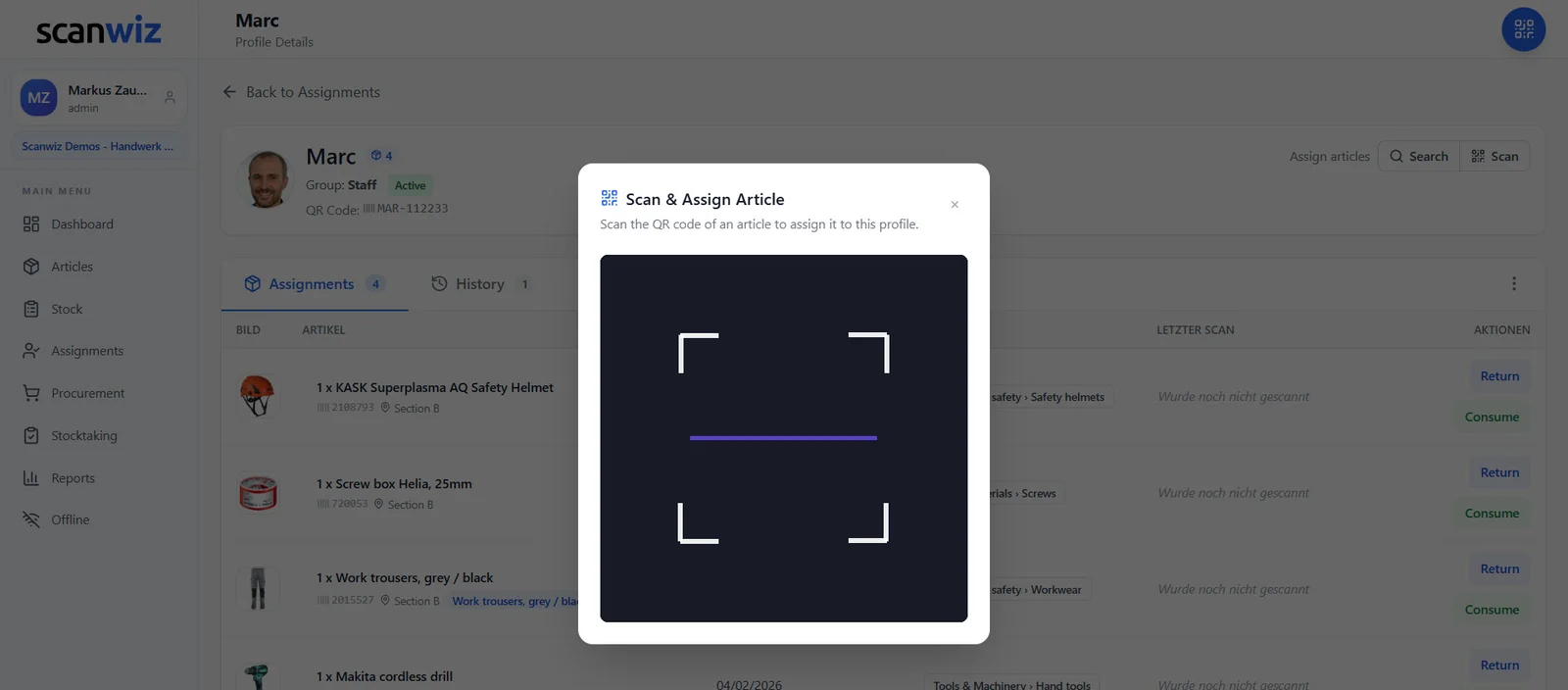
On the profile
Scan instead of searching lists
The profile is open and so is the scan window: every QR code you scan lands directly as an assignment on that person, that site or that vehicle. No search box, no article number, no mixing up two identical cordless drills.
- Identical devices stay distinguishable through their asset number
- Search as a fallback when a label is damaged
- Works with phone camera, tablet and external scanner
- Without a connection it records locally and syncs automatically later
Transparency
One inventory that answers both questions.
How much is there – and how much of it is currently out? In Scanwiz both sit in the same row, instead of in two spreadsheets nobody reconciles.
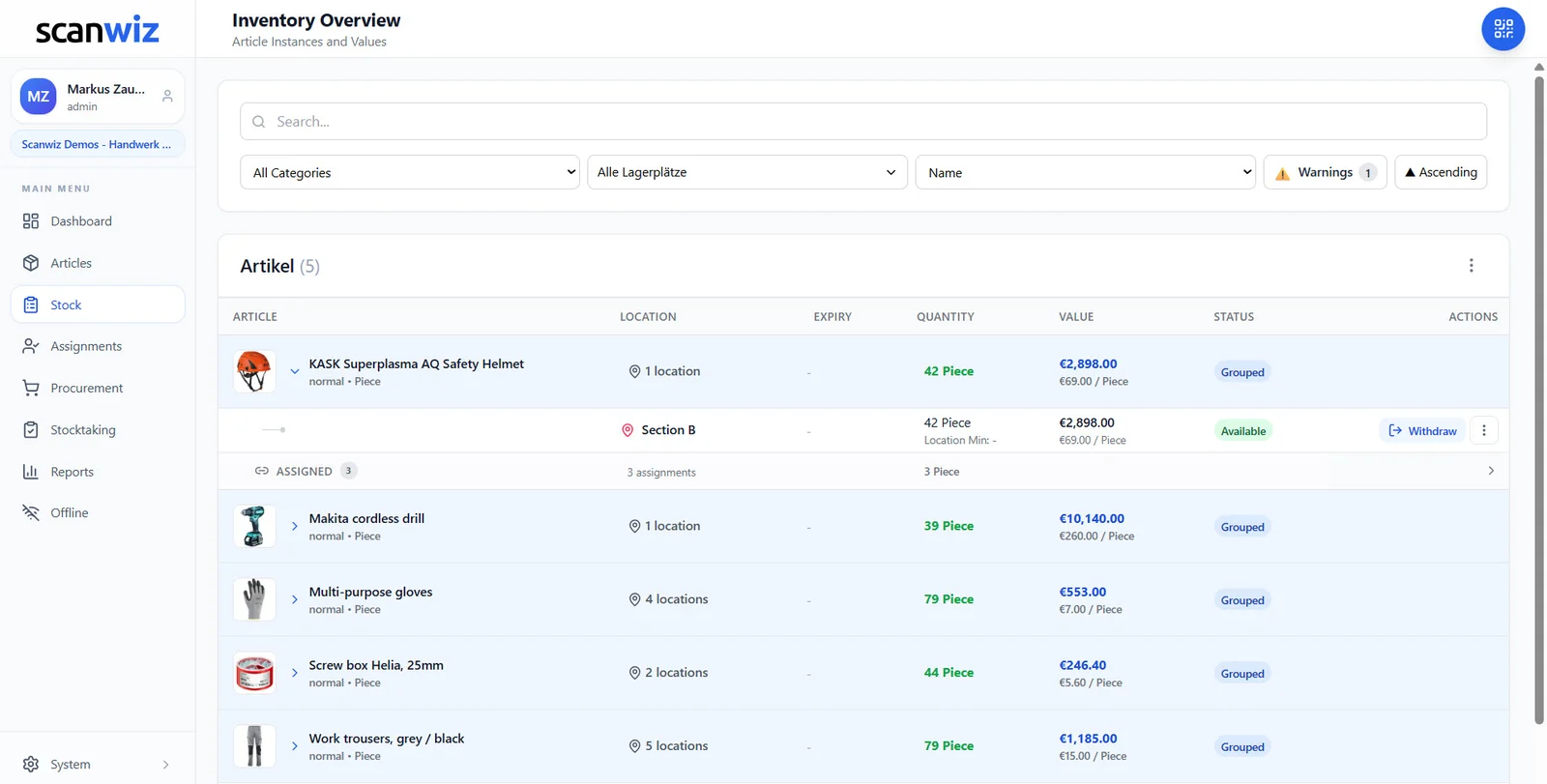
The overview
Available, assigned, below minimum
Every row shows the item with its location, quantity and value. Expand it and you see how the stock is spread: what sits in which storage location and what is currently with people, vehicles or sites.
- An “Assigned” row right below the stock – no switching to another view
- Filter by category and storage location, warnings as their own toggle
- Value per unit and in total – the basis for stocktaking and insurance
- Several storage locations, vehicles and sites in one view
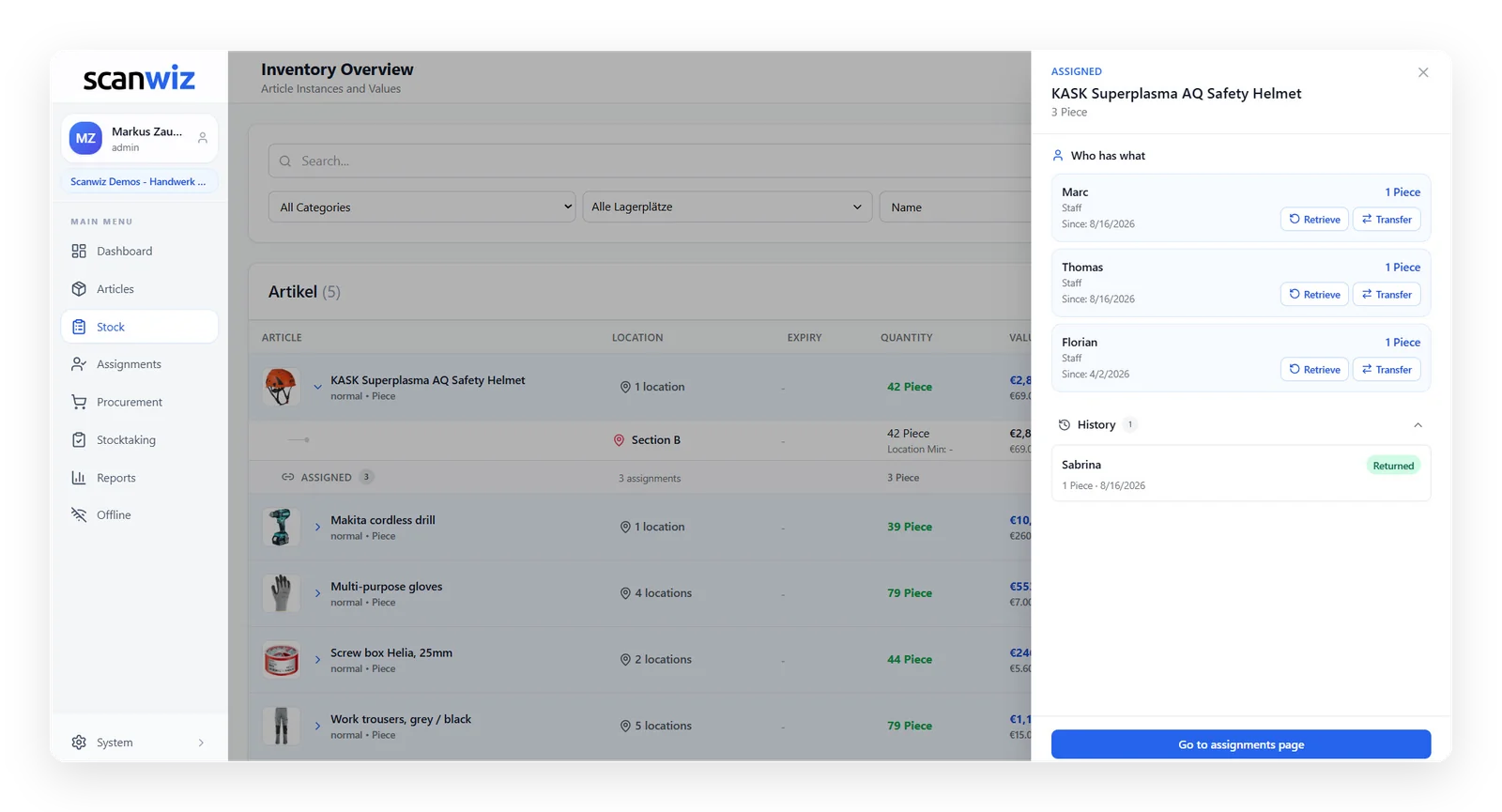
On the object and on the person
Who has it, since when – and what came before
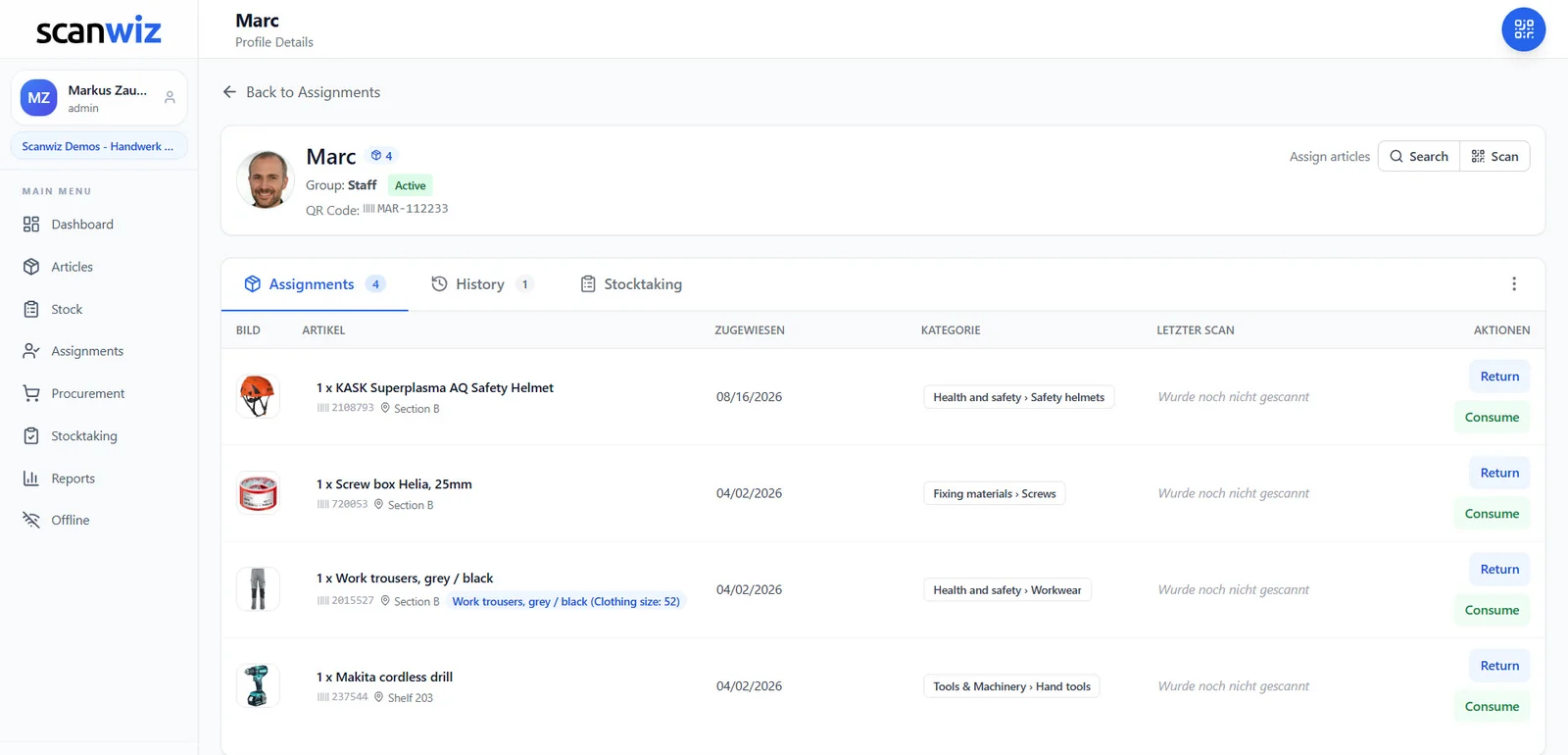
Both directions are answered: on the item you see who has it now and who had it before. On the profile you see what that person, vehicle or site is currently carrying. Retrieve it or pass it to someone else – either is one click.
- “Who has what” on the object, including the handover date
- History with all previous assignments and returns
- Transfer instead of return: straight from one person to the next
- A dedicated stocktaking tab right on the profile
And if something breaks in the field? Scan the QR code on the device, report the fault with a photo – it becomes a job with an owner.
to maintenance & inspectionsAssignment targets
Not every tool belongs to a person.
A rotary hammer lives in the service van, the scaffolding stands on site, the laptop belongs to the IT department. In Scanwiz each of these targets gets its own profile with its own QR code.
People
Every person has a profile with a QR code and sees at a glance what they are currently holding.
Sites & projects
Everything that goes to a site stays assigned to that site – even when the crew changes.
Vehicles
The rolling warehouse: every van carries its own stock of tools and material.
Departments & teams
What belongs to a whole crew does not have to be booked to a single person.
Customers & externals
Loan equipment at customers or subcontractors stays visible instead of being forgotten.
Locations & rooms
Shelf, container, workshop or outdoor store – the location itself has a QR code too.
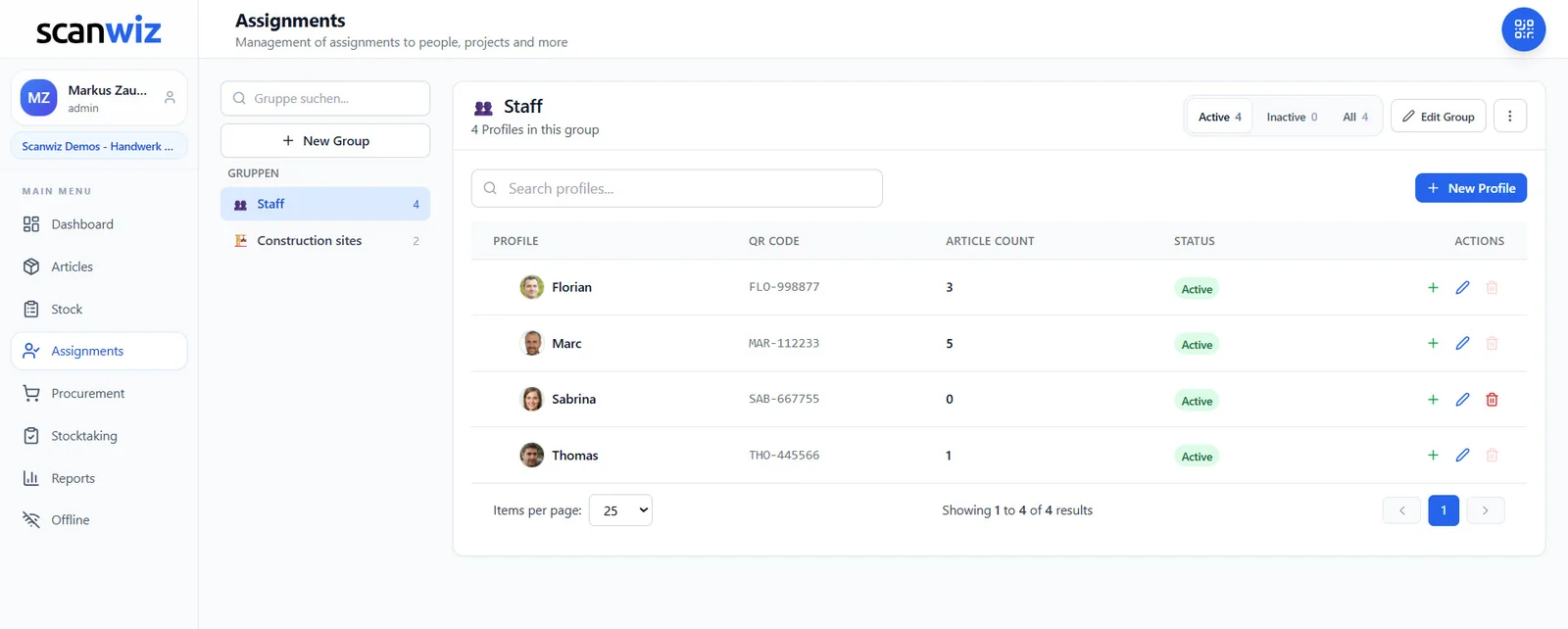
Groups
Structure before it gets messy
Profiles sit in groups – people, sites, vehicles – and every group shows straight away how many items are currently attached to it. Someone leaving the company, or a site that is finished, is set to inactive: gone from the working list, kept in the history.
- Create your own groups, the way your business is organised
- The number of open assignments per profile right in the list
- A printable profile QR – for a badge, a locker or a van door
- Separate active from inactive without deleting data
Seven in the morning
Handing out equipment shouldn’t need a storeman.
When ten people want to leave at once, the handout decides how the day starts. That is why in Scanwiz it also works without anyone keeping the list.
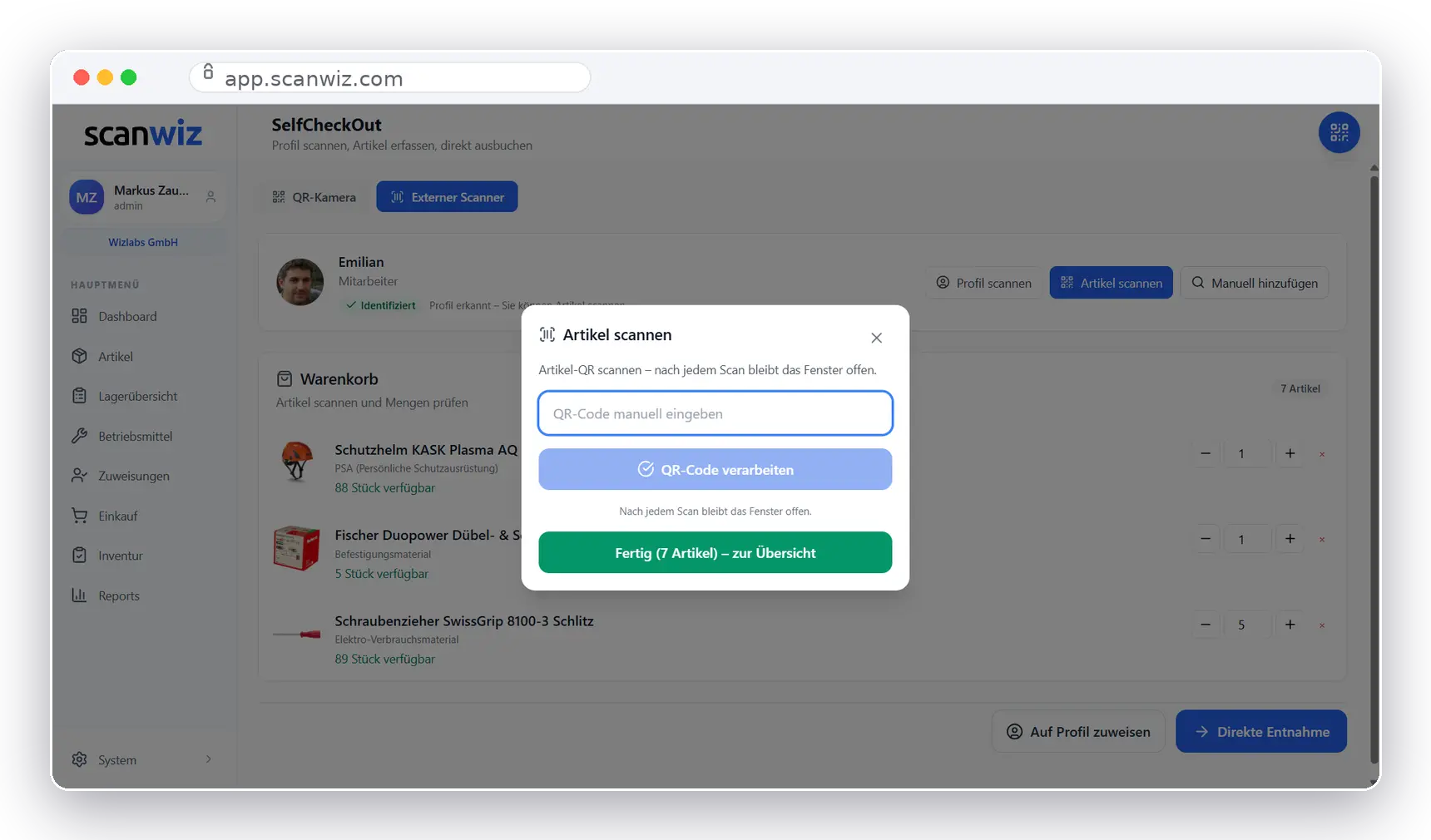
SelfCheckOut
Scan the profile, scan the tool, done
A screen with an attached scanner sits at the issue counter. People scan their own profile, then the objects – the basket fills up line by line. One final click: assign or withdraw directly. No login, no training, no queue.
- Identification via the profile QR – no user account needed
- Wired or Bluetooth scanners connect as a keyboard
- Correct quantities in the basket, then post everything together
- The same on site: identical steps on the phone
The fine distinction
Does it come back – or is it gone?
The cordless drill comes back in the evening, the screws do not. That is exactly where sign-out sheets that treat everything alike fall apart. Scanwiz knows both cases – and shows them side by side on the same profile.
Consumables
Gets used up
- The quantity drops permanently on withdrawal
- No return is expected
- Consumption is attributed to the person or the site
- Below the minimum stock the article lands on the shopping list
- Typical: screws, gloves, sealant, filters
Equipment
Comes back
- Stays as an individual object and keeps its asset number
- The return stays open until it is posted
- Changes holder, not quantity – and can be transferred straight on
- Collects history, maintenance and costs on the object over the years
- Typical: cordless drill, measuring device, forklift, laptop
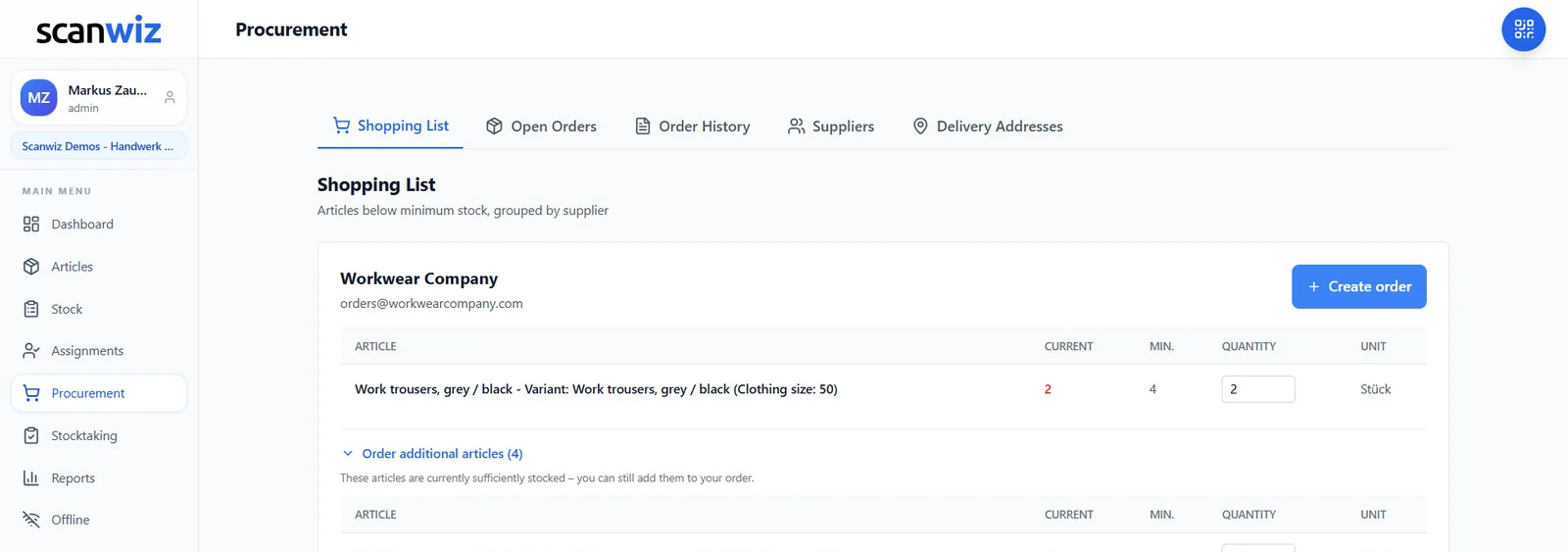
Replenishment
What runs low speaks up by itself
Every consumption lowers the stock – and as soon as an article falls below its minimum it appears on the shopping list, grouped by supplier. The order goes out with one click; after goods receipt the stock is correct again by itself.
- Minimum stock per article and per storage location
- A suggested order quantity you can adjust before sending
- Add further articles from the same supplier to the order
- Open orders and order history in one place
Still keeping both in the same spreadsheet? How to cleanly separate consumables from your tool inventory is covered in detail on the blog.
manage consumables digitallyTraceability
Every handover keeps a record.
The awkward questions rarely come on the day of the handover. They come months later – at stocktaking, after damage, or when someone leaves the company. Two seconds of scanning produce exactly that answer.
The same data, just asked differently. “What equipment does Marc have right now?” – with AI Connect your assistant answers that in plain language.
to scanwiz ai connectWhat changes
Six things that stop tools from disappearing.
Devices rarely go missing because someone steals them. They go missing because nobody remembers who had them last.
Accountability instead of guesswork
Every object has a current holder and a date. Not “Marc probably has it”, but “with Marc since 14 March”.
History stays with the object
Every handout, every return, every transfer stays there – even when location or department changes.
The QR code is the short path
Scan, and the device’s complete file is on the screen – instead of an asset number nobody ever looks up. More on the scanner
Inspection dates ride along
Maintenance and recurring inspections run on the same object – including a reminder for the responsible person. More on maintenance
Offline is not an edge case
In the basement, underground or out in the field: capture happens locally, transfer happens as soon as there is a connection again.
Data in Germany
Hosted in certified data centres in Germany, GDPR-compliant – including assignments to individuals.
Trades, industry or healthcare? The industry pages show how equipment and material typically flow in your sector.
trades & industryFrequently asked questions
Answered briefly.
What is equipment management?
Equipment management keeps every tool, device and vehicle as an individual object with an asset number, a QR code, a location and a current assignment. It records who received which item, when, and when it came back, and files every transaction permanently in the object’s history. Unlike a sign-out sheet in Excel it updates itself as people work – every handout is created by a scan, not by a manual entry.
What is the difference between equipment and consumables?
Equipment comes back, consumables do not. The cordless drill remains an individual object, only changes holder and keeps its asset number and its history. With screws or gloves, by contrast, the quantity drops permanently and the consumption is attributed to the person or the site. Scanwiz covers both: on the same profile each line offers either “Return” or “Consume”.
Who can I assign equipment to?
To people, construction sites, projects, vehicles, departments, customers or external companies. Each of these targets is a profile with its own QR code, and profiles sit in groups you define yourself – for example “Staff” and “Construction sites”. This also lets you manage tools that belong to no single person but live permanently in the service van.
How long does handing out a tool take?
Two scans and a click. You scan the person’s profile, then the object, and confirm the transaction – on a phone, a tablet or an issue screen with an attached scanner. If several objects go out at once, the scan window stays open and the basket keeps filling; everything is posted together at the end.
Do I need a label for every tool?
For every object you want to track individually, yes. Scanwiz generates QR labels that you print and attach yourself. Existing barcodes or serial numbers can be stored instead and kept in use. Everything also works without a label, just via search rather than scan – which costs seconds per transaction.
Can I see who currently has a device?
Yes, and from both directions. On the item, “Who has what” shows which people currently hold it and since when; below that sits the history with all previous assignments and returns. On the profile of a person, site or vehicle you see the complete list of what is currently open there.
What happens on return?
One click on “Retrieve” ends the assignment, the object is available again and the transaction moves into the history. Alternatively there is “Transfer”: the device goes straight from one person to the next without a detour through the store. In both cases it stays fully traceable who had it and when.
How do I get my existing inventory into the system?
Through the Excel import. Equipment, categories, asset numbers, storage locations and values can be taken from a spreadsheet so you do not start from zero. After that the objects are labelled and the current assignments are recorded once – from that point the inventory maintains itself through daily scans.
Does this also work without internet on site?
Yes. Scanwiz has an offline mode: scans and postings are captured locally on the device and transferred automatically as soon as there is a connection again. For basements, underground car parks and sites without reception that is the normal case, not the exception.
Can I link maintenance and inspections to the equipment?
Yes. Every item can carry recurring maintenance and inspections, including interval, checklist, reminder and inspection report – plus meter readings such as operating hours or kilometres. A fault can also be reported directly on the object, with a photo and an owner. This is covered in detail on the page about maintenance & inspections.
Can I query my equipment with AI?
Yes, through Scanwiz AI Connect. You connect your account to an assistant such as ChatGPT or Claude and ask in plain language, for example “What equipment does Marc have right now?” or “Where is the ladder with asset number 100245?”. The connection runs in read-only mode by default. More about it on the page about Scanwiz AI Connect.
Is equipment management included in my plan?
Assignments, returns and the history per object are part of the core of Scanwiz. Which additional functions – reporting or the ordering module, for example – sit in your plan is shown in the pricing overview; if in doubt we will tell you in two minutes on the phone. You can try everything beforehand for 14 days, free and without obligation, no credit card.
Over 250 customers already rely on Scanwiz
Tomorrow morning tools go out again. This time with a name on them.
Start free and without obligation – no credit card, no risk. Or let us show you Scanwiz in a personal demo.
4.9 out of 5 stars from over 120 verified customer reviews