Feature: Stocktaking
Count it. Don’t copy it.
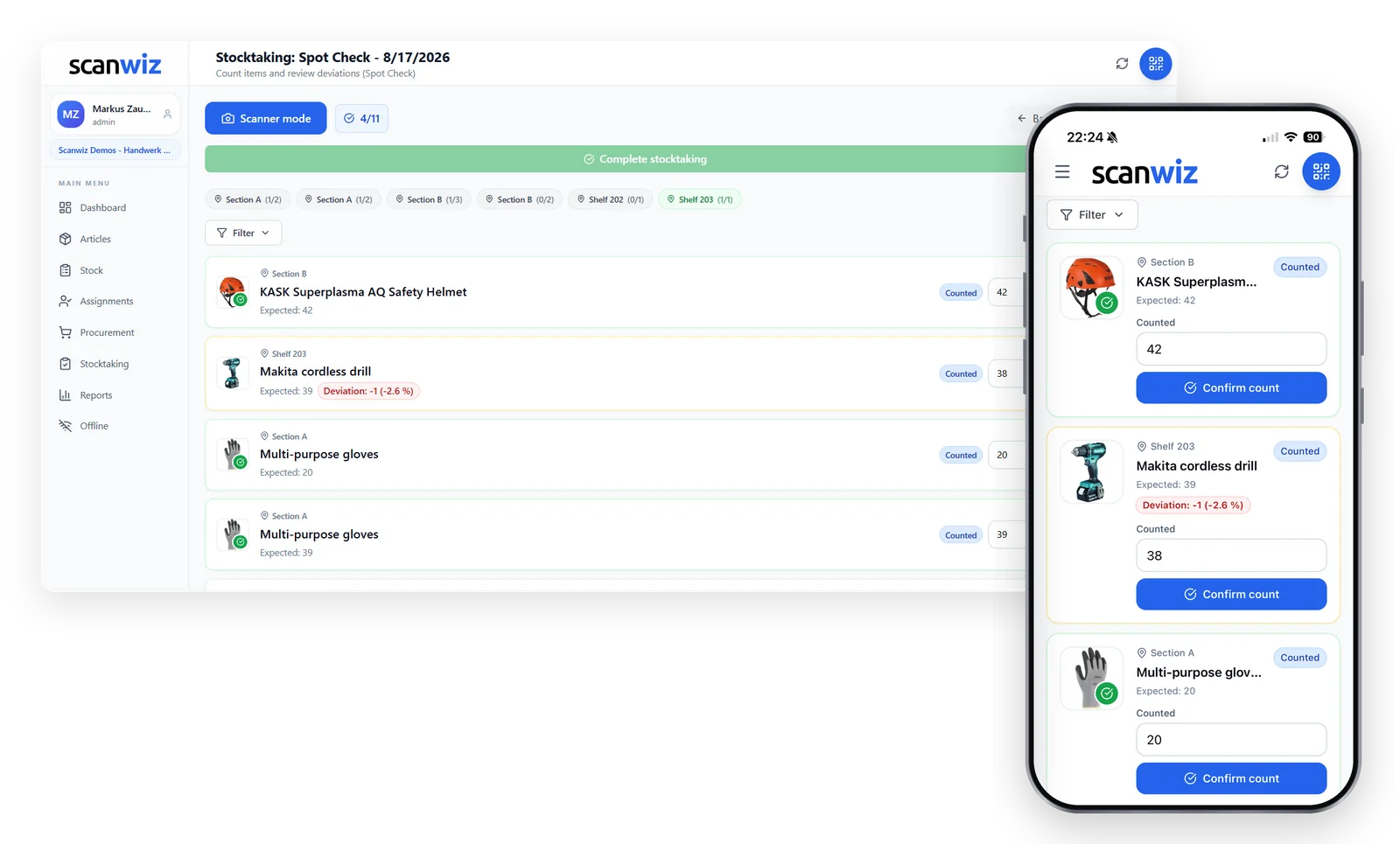
Four stocktaking types, one wizard, counted on the phone. Scanwiz hides the expected quantity on request, works out every deviation itself and sends only what truly falls outside the limits for approval. Pausing and finishing tomorrow is built in.
Full Stocktaking · Cycle Count · Spot Check · Blind Count
In short
Stocktaking software replaces the count sheet and the clipboard with a guided count on a phone or scanner. In Scanwiz you create a stocktaking as its own session, choose the type and the scope, and every counted quantity is checked against the expected stock straight away – inside your tolerance it passes, above it the item moves to approval. What you end up with is not a retyped spreadsheet but a closed session with its own number, a timestamp and a complete list of deviations.
Four types, one piece of software
Not every stocktaking has to shut down the whole warehouse.
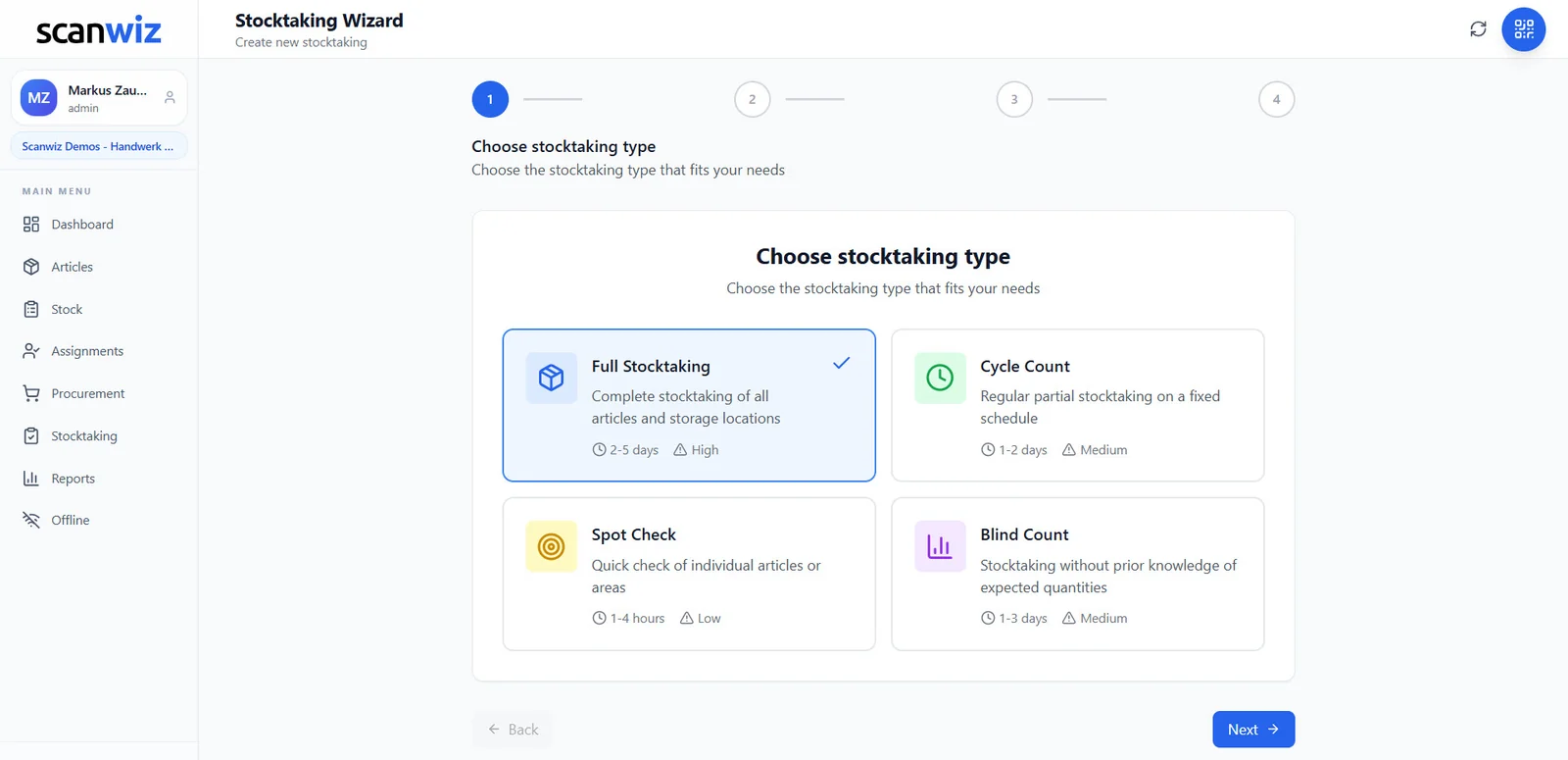
The year-end count is only one of four cases. Anyone who counts regularly in small rounds has almost nothing left to do on the cut-off date. Scanwiz knows all four – picking one is the first step in the wizard.
Full Stocktaking
Complete stocktaking of all articles and storage locations. The year-end classic – everything at once, with maximum authority.
Cycle Count
Regular partial stocktaking on a fixed schedule. One area a week – by year end everything has been counted once, without a state of emergency.
Spot Check
Quick check of individual articles or areas. For a suspicion, a critical category, or simply in between.
Blind Count
Stocktaking without prior knowledge of expected quantities. If you don’t know what should come out, you count – instead of confirming.
Step 1 of 4
The decision takes one click
The wizard walks you through four steps: type, scope, settings, review. Every card shows in advance what duration and effort to expect – so the decision isn’t made on gut feeling.
- Duration and effort shown on every stocktaking type
- Several stocktakings may run in parallel
- Every session gets its own number, such as INV-D9060B3C
- Active immediately: create it and start counting right away
Step 4 of 4
Everything settled before the first item
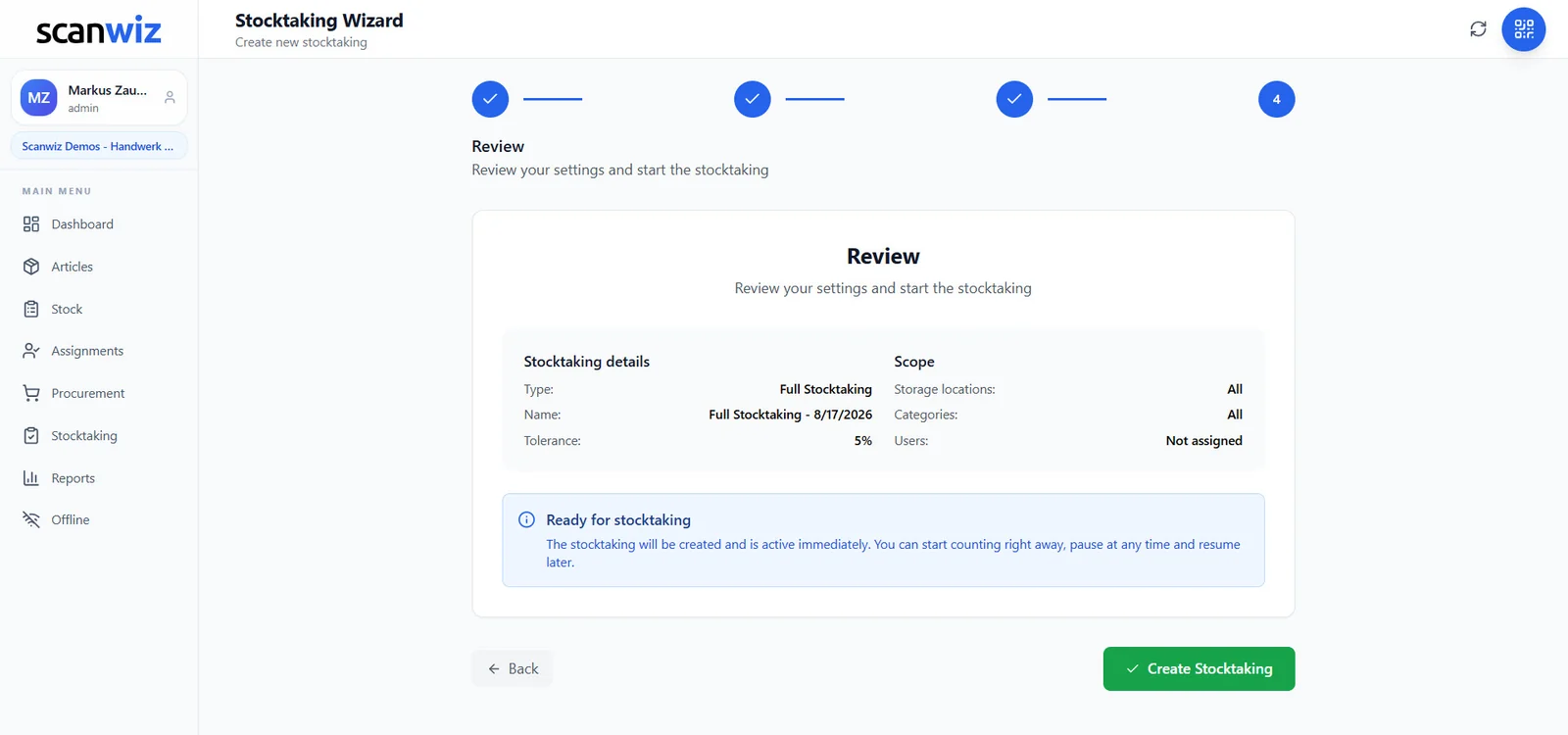
The last step puts type, name, tolerance, scope and the people involved side by side one more time. Anything wrong here would show up later as a difference nobody can explain – so it is worth the ten seconds.
- Type, name and tolerance summarised in one view
- Scope shown as storage locations, categories and users
- Active immediately – counting can start on the spot
- Pause at any time and resume later, as stated in the wizard
How it works
From “we really should count” to the record.
Four of them take a few minutes together. The fifth is the counting itself – and that is exactly where Scanwiz saves the hours.
-
01
Choose the type
Full Stocktaking, Cycle Count, Spot Check or Blind Count – the wizard shows duration and effort alongside.
-
02
Define the scope
Tick or untick storage locations, categories and assignments one by one. Everything is possible, nothing is mandatory.
-
03
Set the rules
Tolerance in percent and in units, plus the people allowed to count. After that the stocktaking is active immediately.
-
04
Counting
Walking the aisles with a phone: pick the storage location, scan the article, type the quantity, confirm. Item by item.
-
05
Approve & complete
Only deviations above the tolerance go to approval. Then one click – and the stock is correct again.
The count run
Count five items. Watch what happens.
This is not an animation, it is the logic Scanwiz uses to judge every count. Enter quantities, move the tolerance, hide and show the expected quantity – and watch which items pass and which go to approval.
-
Section BKASK Superplasma AQ Safety HelmetExpected: 42Pending
-
Shelf 203Makita cordless drillExpected: 39Pending
-
Section AMulti-purpose glovesExpected: 20Pending
-
Shelf 202Screw box Helia, 25 mmExpected: 45Pending
-
Materials storeSwissGrip 8192-1 Pozidriv screwdriverExpected: 10Pending
Inside the tolerance an item passes – percent and units both have to hold.
Interactive example · in Scanwiz the items, storage locations and expected quantities come from your own stock
On the shelf, not at the desk
The clipboard has had its day.
Keeping notes, retyping them, hunting for typos – most stocktaking differences are created after the counting, not during it. In Scanwiz the quantity is captured where it is counted.
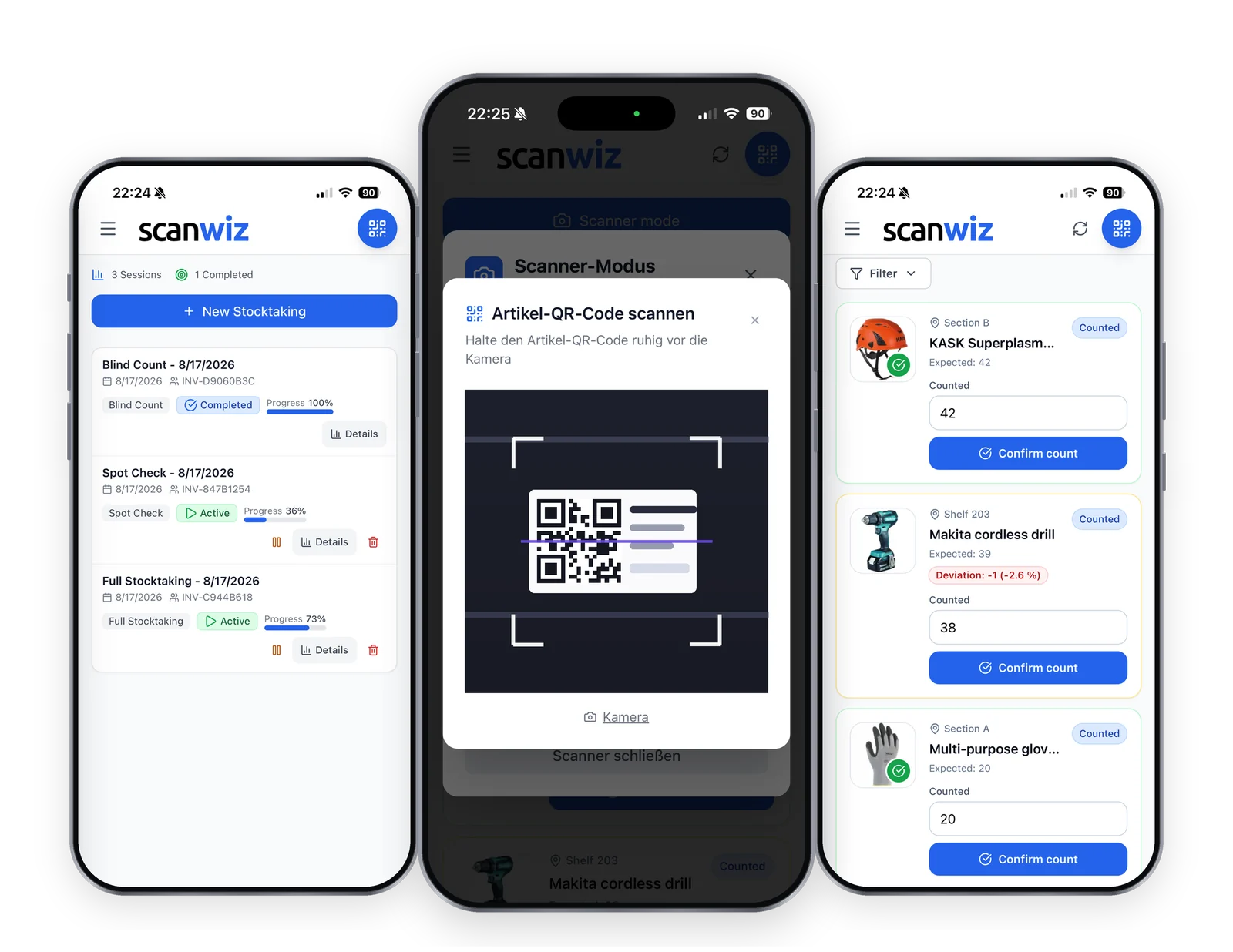
Pick the storage location
Set the main location and sub-location once – the context is then kept while you scan.
Scan the article
Hold the QR code in front of the camera. The matching item becomes the active one straight away.
Confirm the quantity
Type the number, confirm, move on. The item is posted before you leave the shelf.
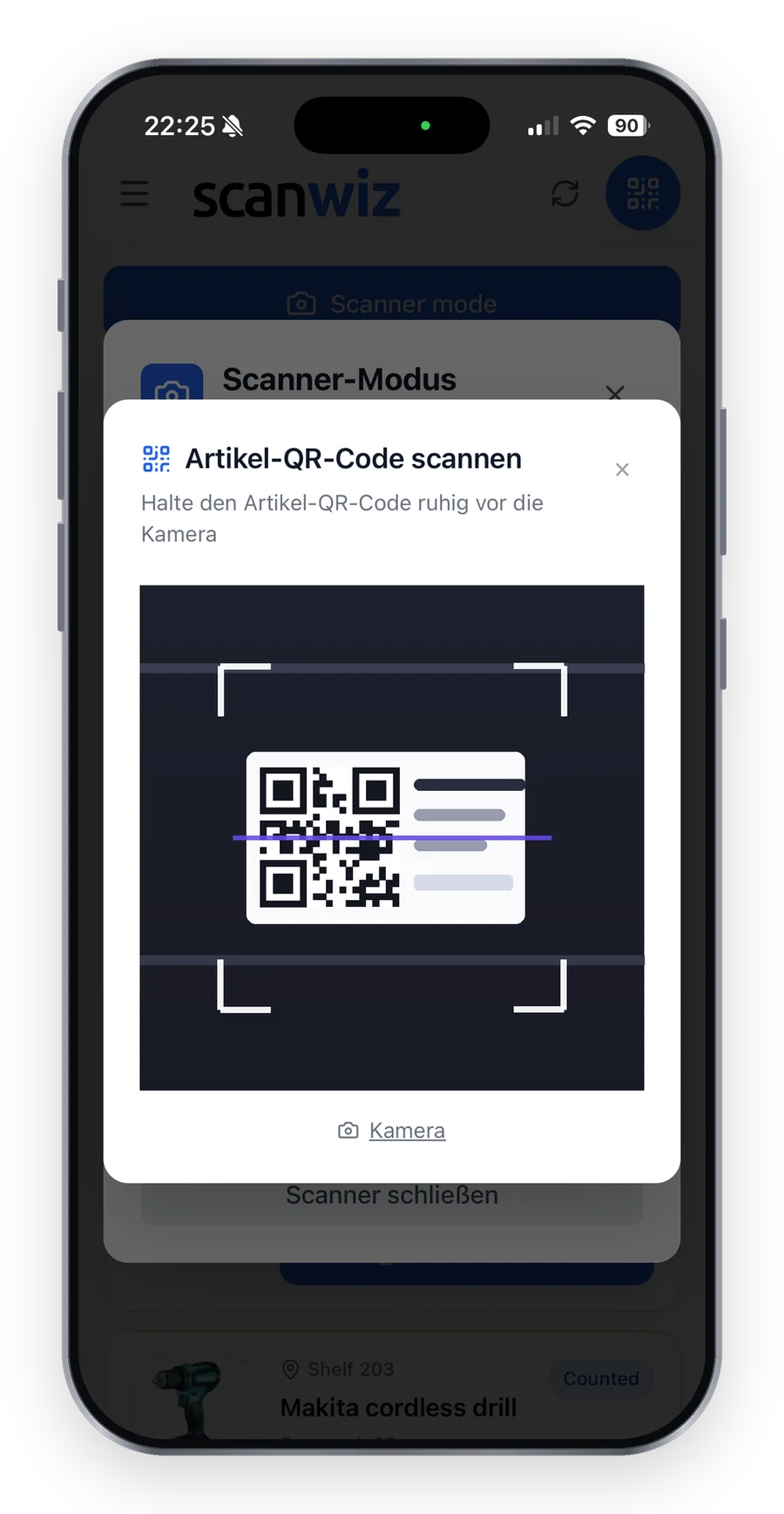
Scanner mode
One hand on the shelf, one on the phone
Scanner mode stays open while you walk the aisle. Every code you scan opens the matching item, you type the quantity and carry on. No paging through lists, no hunting for the right row, no mixing up two similar articles.
- No paper, no retyping – and therefore no transfer errors
- Without reception the count is stored locally and synced later – how offline stocktaking works
- Several people count in the same stocktaking at once
- Pause and pick up at the same point the next day
Keep counting without reception
There is no Wi-Fi in the basement. The count goes on anyway.
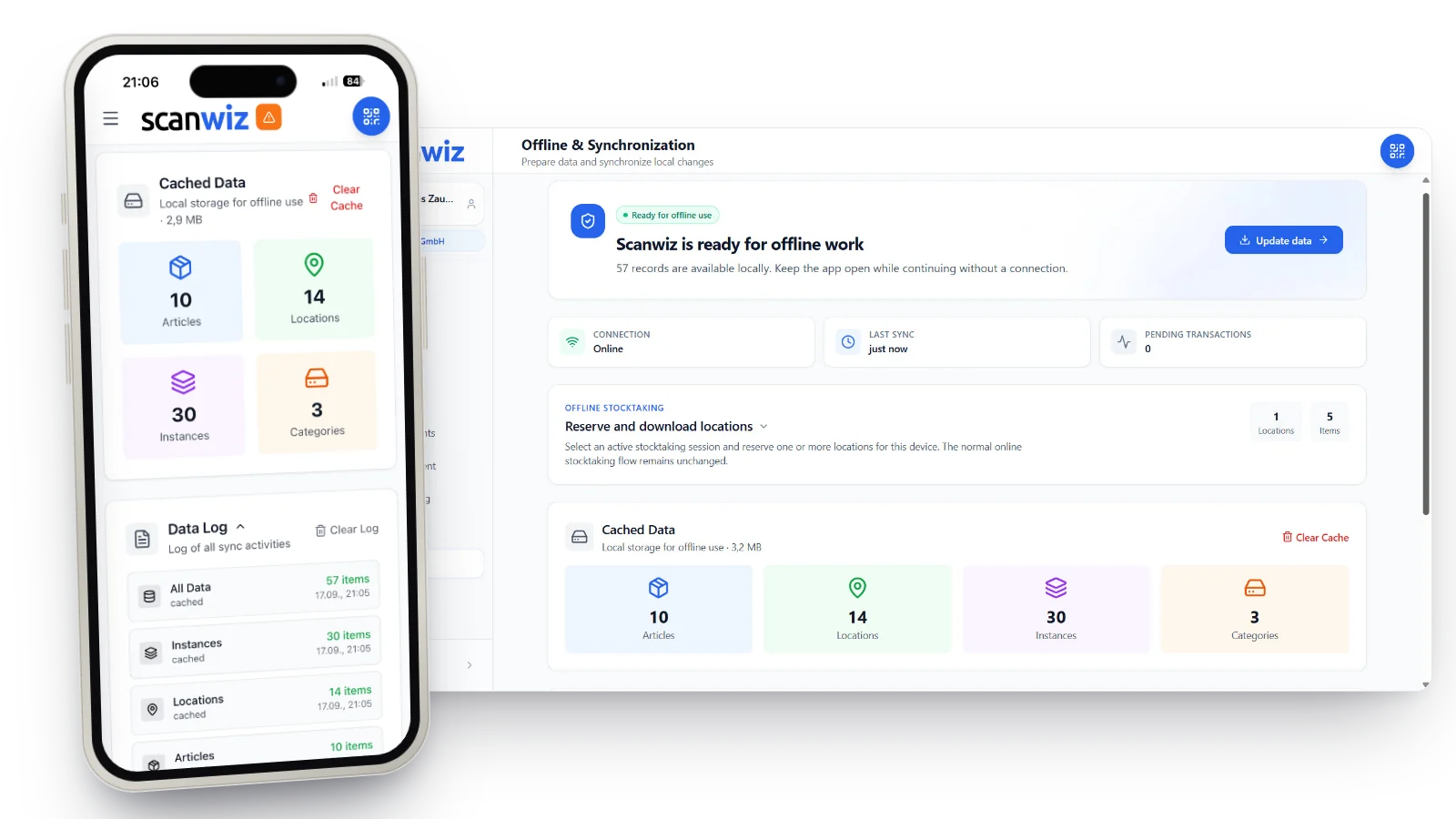
Underground car park, outdoor store, container on site: Scanwiz puts the data on your device beforehand and keeps counting where reception stops. Once you are back online, the pending entries are transferred automatically.
-
01
Prepare online
One click on “Prepare now” stores articles, locations, stock levels and categories locally on the device. This usually takes only a moment.
-
02
Keep working offline
Reserve locations for this device, scan, count, look up articles. Every entry is safely queued on the device.
-
03
Sync automatically
As soon as the connection is back, Scanwiz transfers the pending transactions. The data log shows what was transferred and when.
The app is opened online once and stays open while you work offline – no further preparation needed.
What works without a connection
Everything you prepared is stored locally on the device.
- Counting in the active stocktaking session: choose location, scan article, confirm quantity
- Looking up articles: details, stock levels, locations, instances and categories
- Reserving locations for your device so no area is counted twice
- Counting offline with several devices in parallel – each with its own locations
Good to know
Offline is an addition, not a separate mode to relearn.
- The normal online stocktaking flow remains unchanged.
- Connection, last sync and pending transactions are visible at all times.
- “Update data” fetches the latest state in between, as long as there is reception.
- Cache and data log can be cleared with one click, for example before handing over the device.
The scope
Including what isn’t in the warehouse right now.
Most stocktaking tools count shelves. Scanwiz counts three dimensions at once – and the third is the one classic count sheets fail at.
Storage locations
Workshop, materials store, shelves, sections – every location selectable on its own, or all at once.
Categories
Only tools, only fixing materials, only health and safety: count one category without touching the rest.
Assignments
Whatever sits with people, in a van or on a construction site is counted too – person by person.
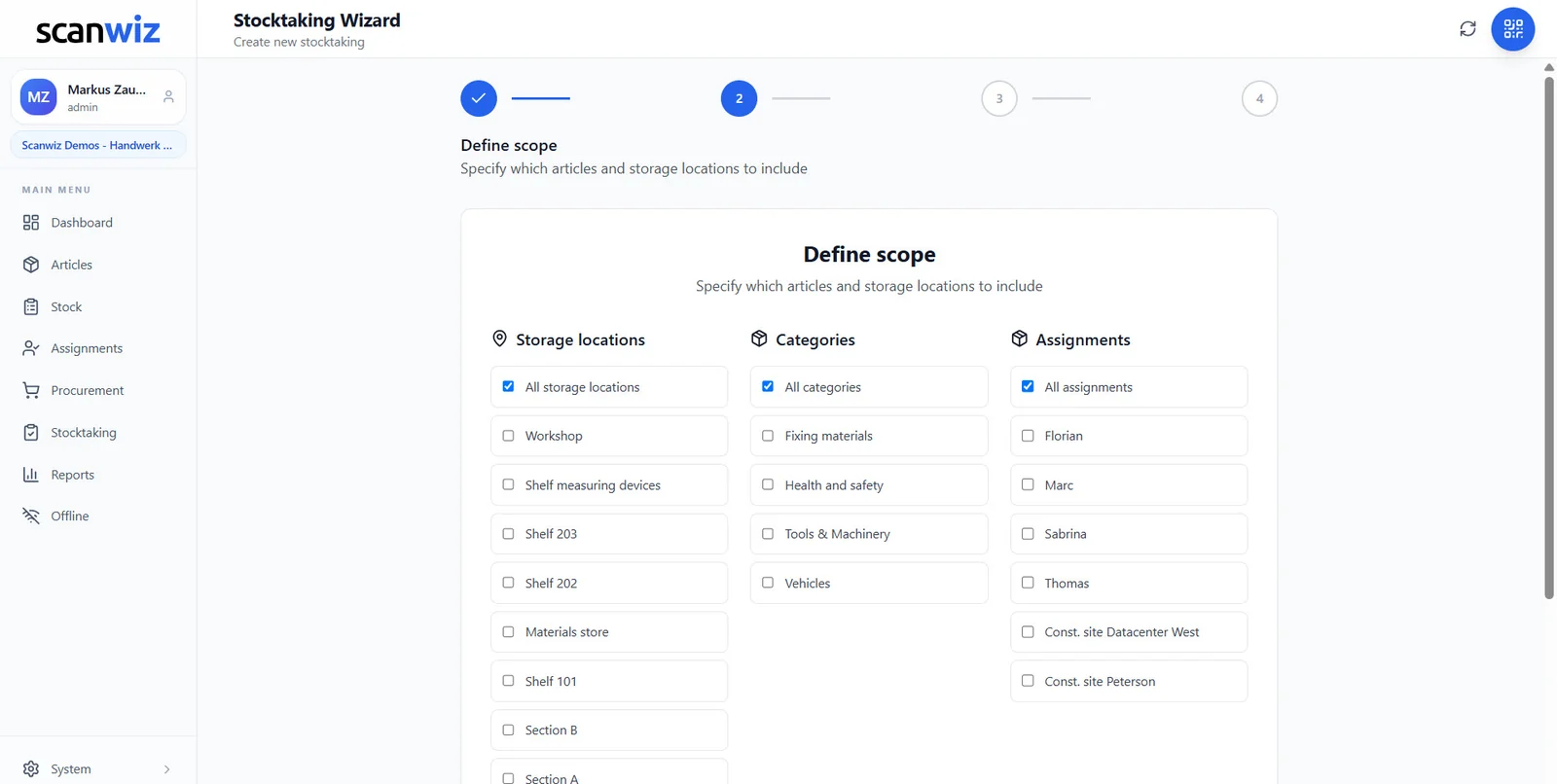
Step 2 of 4
The blind spot of every count sheet
In every business part of the stock is not in the warehouse but in the van, in a locker or on site. Left out of the count, it shows up as a difference – even though nothing is missing. Because Scanwiz knows who has what, that part can go straight into the scope.
- Storage locations, categories and assignments freely combined
- Have specific people counted instead of everyone
- A dedicated stocktaking tab right on the assignment profile
- The scope is fixed before the first number is entered
Equipment that is constantly on the move? How assignments to people, vehicles and construction sites work is covered on the equipment management page.
to equipment managementTolerance & approval
Two screws too many are not an incident.
Treat every deviation the same way and you drown in queries. Check none and you notice nothing. The tolerance draws the line between the two – and it does so before anyone counts.
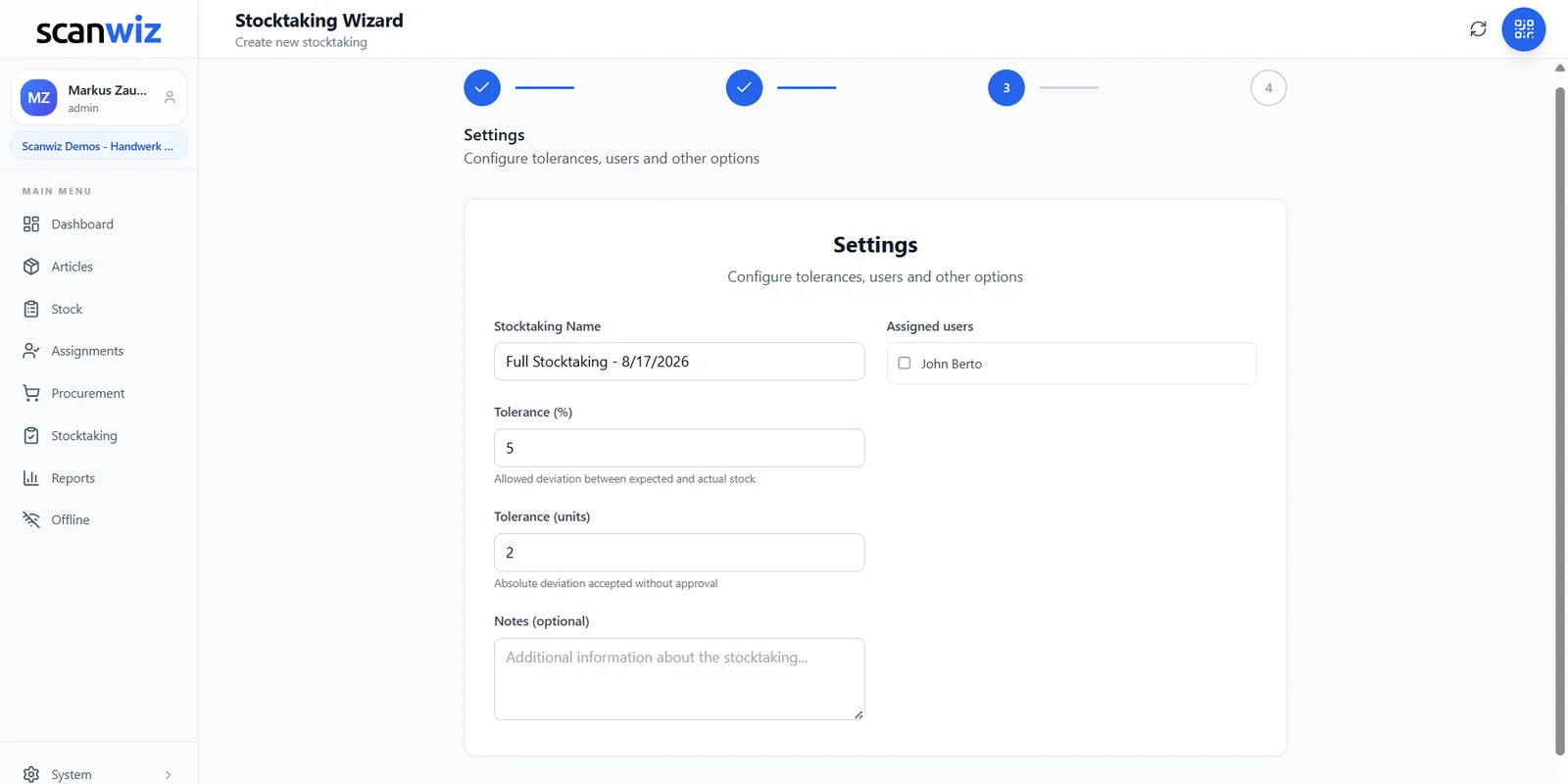
Step 3 of 4
Percent and units, both together
Five percent deviation on 42 helmets is something else than on ten screwdrivers. That is why Scanwiz checks both figures: the relative deviation in percent and the absolute one in units. Only when an item stays inside both limits does it pass – everything else needs an approval.
- Tolerance set per stocktaking, not fixed globally
- The deviation is shown on the item itself, in units and percent
- Only assigned users may count in this stocktaking
- Notes record why this stocktaking is running at all
Several sessions
Counting is allowed to take longer than an afternoon
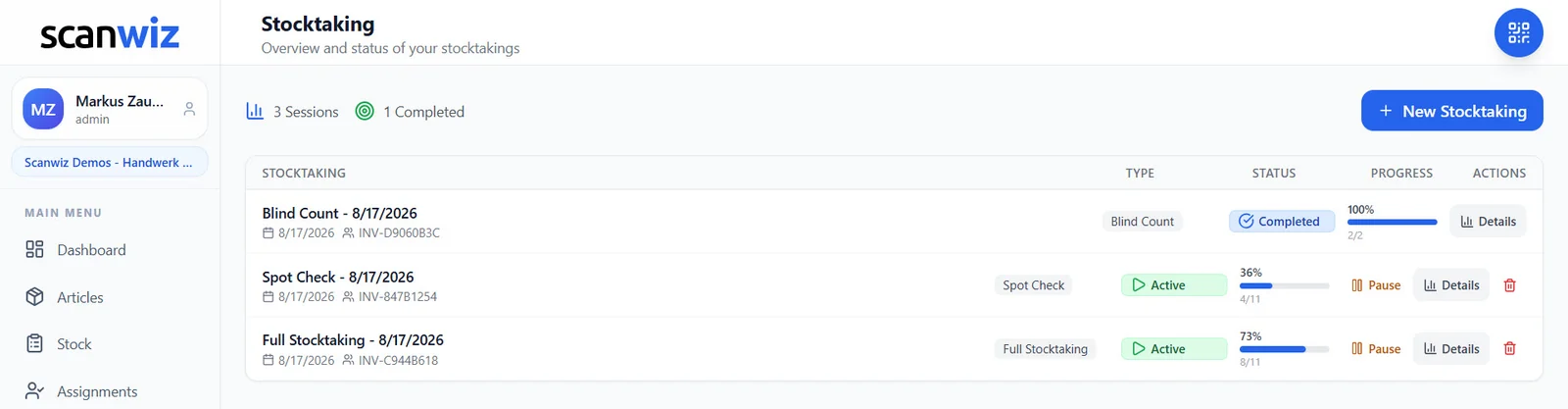
A full stocktaking, a cycle count running alongside, plus a finished blind count: the overview lists every session with its progress in percent and the number of items done. Pause, resume tomorrow, start a second stocktaking in parallel – all of it is intended.
- Progress in percent and as a ratio, for example 8 of 11
- Pause and resume without losing intermediate results
- Several stocktakings at once, without getting in each other’s way
- The same state on the desktop and on every phone
Blind Count
Whoever knows the number stops counting properly.
If the expected quantity is on the sheet, it gets confirmed instead of checked. “Should be 42” – a quick glance at the shelf, tick. The blind count exists precisely against that.
Count sheet with expected quantity
Confirm
- The expected quantity sits next to it and steers the result
- Small deviations get rounded away unconsciously
- Missing stock only surfaces months later
- The count mainly proves that somebody looked
Blind Count in Scanwiz
Counting
- The expected quantity is hidden – only the article is visible
- The number comes from the shelf, not from memory
- Scanwiz compares afterwards and flags every deviation itself
- The result holds up to a critical question, too
And the analysis afterwards? “Where did we have the largest differences this year?” – with AI Connect you ask that in plain language.
to scanwiz ai connectWhat changes
Six things that make stocktaking easier.
Stocktaking is rarely difficult. It is long-winded, error-prone and always comes at the worst possible moment. All three can be changed.
No more retyping
The number is captured once – at the shelf. The step from paper into the spreadsheet disappears, and with it most of the errors.
No standstill
With cycle counting you count in small rounds throughout the year. The cut-off date loses its terror.
Honest numbers
In a blind count the result comes from the shelf instead of from a memory of the expected stock.
Offline counts too
Basement, outdoor store, site container: prepare online once, count locally, transfer as soon as there is reception again. About offline stocktaking
Several people in parallel
Everyone involved sees the same progress. Nobody counts an area twice.
Documented for audit
Every stocktaking is kept with its number, period, participants and list of differences – years later as well. More on scanning
Batches and expiry dates in your stock? With medication and sterile goods it is not only the quantity that counts, but the date – a topic of its own.
inventory management for medical practicesFrequently asked questions
Answered briefly.
What is stocktaking software?
Stocktaking software replaces the count sheet and the clipboard with a guided count on a phone, tablet or scanner. The counted quantity is checked against the expected stock straight away, deviations are calculated automatically, and the whole session is kept as a record with its number, period and participants. The decisive difference to a spreadsheet: there is no transfer step from paper into the system in which errors can arise.
Which stocktaking types does Scanwiz support?
Four. The Full Stocktaking counts all articles and storage locations and typically takes two to five days. The Cycle Count is a regular partial stocktaking on a fixed schedule and needs one to two days per round. The Spot Check examines individual articles or areas in one to four hours. The Blind Count runs without prior knowledge of the expected quantities and takes one to three days. The type is chosen in the first step of the stocktaking wizard.
What is a blind count and what is it good for?
In a blind count the expected quantity is hidden while counting – only the article is visible. That makes it impossible to confirm what should be there anyway; it has to be counted for real. Scanwiz only compares after saving and flags every deviation with the number of units and a percentage. The result is more robust because it was not influenced by knowing the expected stock.
How does the tolerance for deviations work?
You set two limits per stocktaking: a relative tolerance in percent and an absolute one in units. An item only passes if it stays inside both. Two units of deviation are uncritical on 300 articles, but on ten articles they are twenty percent – that case is flagged as “Approval pending” and has to be confirmed by an authorised person. Everything inside the tolerance passes without a query.
Can I do the stocktaking on a phone?
Yes, that is the intended way. In the app you pick the storage location, scan the QR code of the article, type the counted quantity and confirm. The item is posted before you leave the shelf. Creating a new stocktaking, the overview of running counts and the progress in percent are available on mobile as well.
Does counting work without an internet connection?
Yes. Before heading into the store, one click on “Prepare now” loads the current articles, locations, stock levels and categories onto the device. You then reserve the locations you want to count offline and count as usual – every entry is queued locally. As soon as there is a connection again, Scanwiz transfers the pending transactions automatically, and the data log shows you what was transferred and when. The only requirement: the app is opened online and stays open while you work offline. For basement stores, outdoor stores and site containers without reception that is the normal case – more about offline stocktaking.
Can several people count at the same time?
Yes. In the third step of the wizard you define which users may count in this stocktaking. Everyone involved sees the same progress in percent and the same number of completed items, so no area is counted twice. The state is identical on every device.
Does the stocktaking have to be finished in one day?
No. Every stocktaking is its own session that can be paused and resumed later without losing intermediate results. Several stocktakings may also run in parallel – a full stocktaking, for example, with a cycle count for a single area alongside it.
Is what people are carrying counted as well?
Yes, if you include it in the scope. Besides storage locations and categories, the second step also lets you select assignments. That way the stock sitting with people, in vehicles or on construction sites is counted too – exactly the part missing from classic count sheets that later shows up as a supposed difference. More about it on the page for equipment management.
What happens to the stock after completion?
On completion the counted quantities are taken over as the new stock and the differences are posted as a correction. The session is kept in full: with its own number, period, type of stocktaking, the people involved and the list of all deviations. That keeps it traceable years later.
Can I export the stocktaking data?
Yes. The items of a stocktaking can be exported and passed on to accounting, tax advisors or auditors. If you would rather process the data automatically, the REST API is available for that.
How do I start if my stock is currently in Excel?
Through the Excel import: articles, categories, storage locations, quantities and values can be taken from a spreadsheet. The articles are then labelled with QR codes, and the first stocktaking in Scanwiz doubles as the initial inventory. From that point the stock keeps itself current through the daily postings.
Over 250 customers already rely on Scanwiz
The next stocktaking is coming. This time without paper.
Create a test stocktaking and count a single metre of shelving. After that you will know whether it fits – free, no credit card.
4.9 out of 5 stars from over 120 verified customer reviews