Feature: Digital signature
Handover confirmed. With a signature, without the paperwork.
The printed equipment handover form has had its day: in Scanwiz, employees confirm the handover of tools, devices and PPE with a signature straight on the screen – or by email. The receipt is built from the assignment that is already booked, and stays on the profile for good.
Receipt · Direct signature · Email signature · History · Proof
In short
An equipment handover form records which person took over which tool, device or piece of protective equipment, and when – confirmed by their signature. In Scanwiz this receipt is created right on the profile: select the items, choose the signature type, sign. Instead of a template, a printer and a binder there is a “Receipt” tab, where every confirmed handover is filed with date, items, status and signature type.
How it works
Four clicks between assignment and signature.
The receipt needs no preparation. It takes the items already assigned to the person and only asks who confirms, and how.
-
01
Open the profile
The “Receipt” tab sits on the person’s profile – right next to Assignments and History.
-
02
Select the items
“Create signature” lists all open assignments. All are pre-selected; anything that should not be on the receipt is unticked.
-
03
Choose the signature type
Direct signature on screen – or email signature if the person is not on site. The name comes from the profile.
-
04
Sign
The confirmation text is ready: items, recipient, date. Sign with finger or stylus, click “Sign” – the receipt is booked.
On the profile
The receipt sits where the assignment sits.
Nobody has to search for anything: the items that belong on the receipt are already on the profile – as assignments.
The assignments
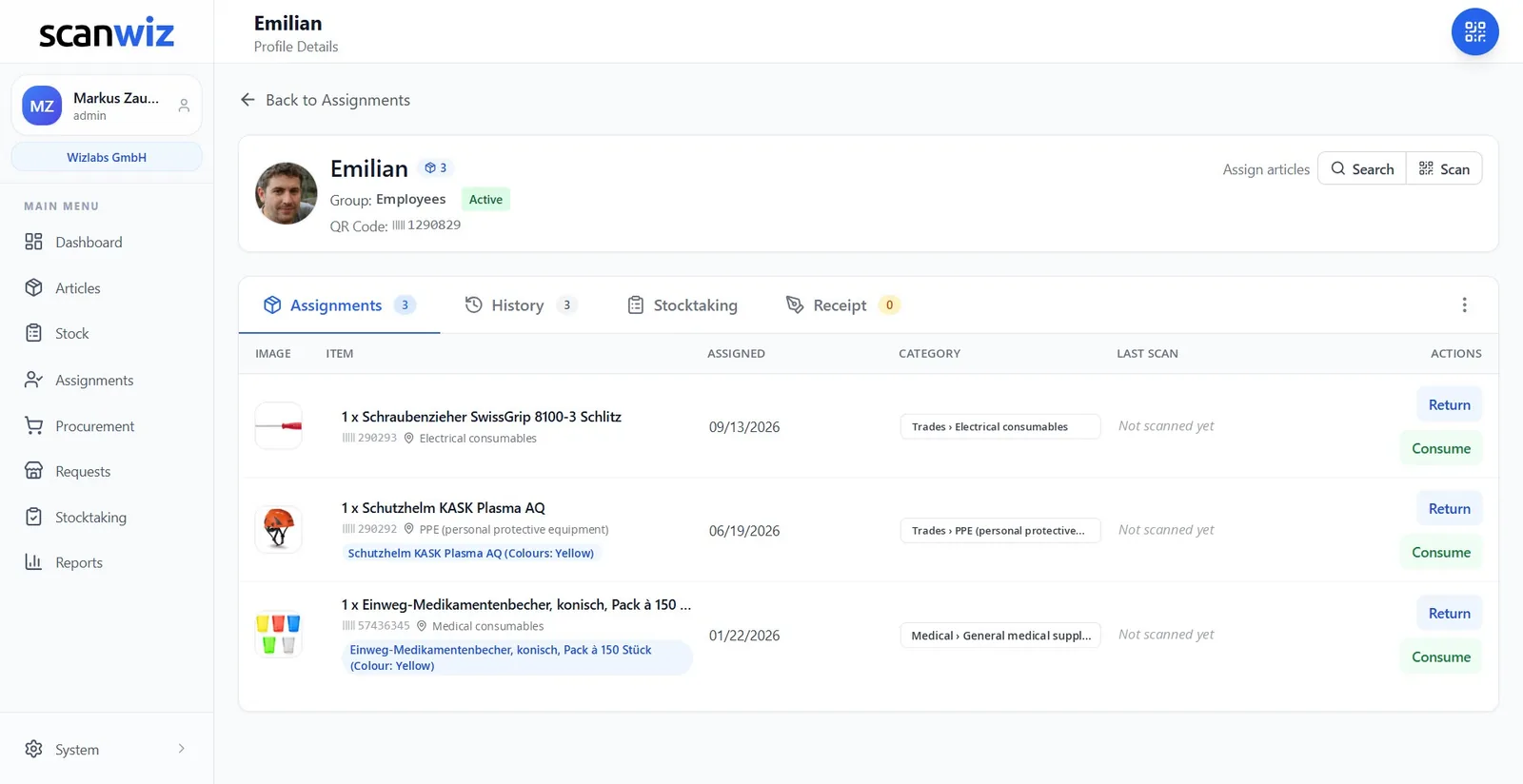
Three items, one tab over
Emilian’s profile lists three assignments – a screwdriver, a safety helmet and disposable medicine cups – each with inventory number, category and date. The “Receipt” tab next to it shows how many handovers have been confirmed so far. Nothing that already stands here needs typing again.
- “Receipt” as its own tab next to Assignments, History and Stocktaking
- A counter shows how many receipts are on the profile
- Works on every profile that holds assignments
- Return and Consume stay untouched: the receipt documents, it does not rebook
The selection
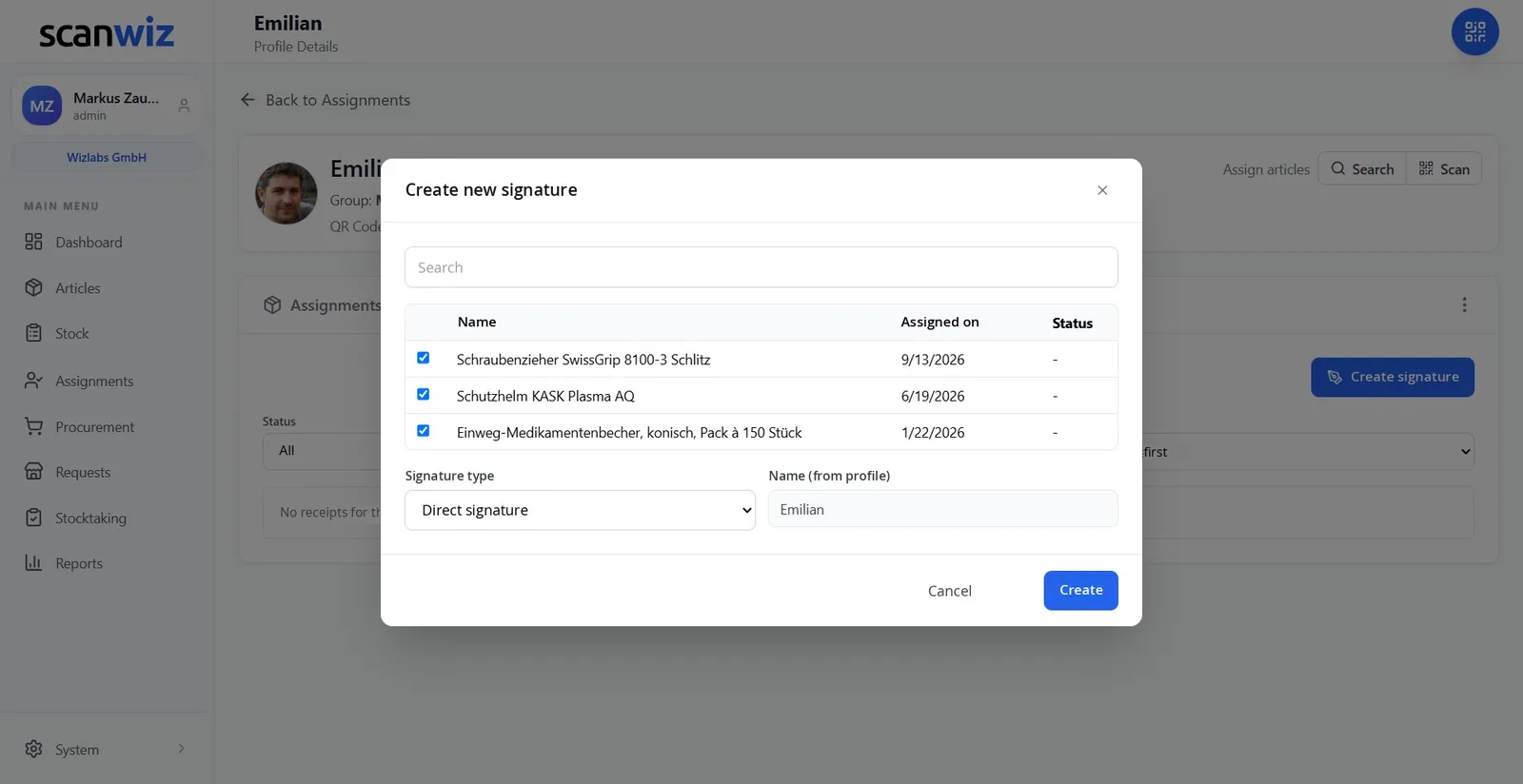
Everything pre-selected, nothing forgotten
“Create signature” opens the list of open assignments with name, date and status. All rows are ticked – if only part of them is to be confirmed, the rest is unticked. Below that: signature type and the name from the profile. A receipt needs nothing more.
- Search field for profiles with many assignments
- Partial receipts: tick or untick items individually
- Name, assignment date and status per item at a glance
- The name is taken from the profile – no typos in the proof
The signature
One sentence, one list, one signature.
The confirmation text writes itself: which items, to whom, on which day. The person reads it, checks the list and signs – on a tablet, a phone or the checkout screen.
Direct signature
Read, check, sign
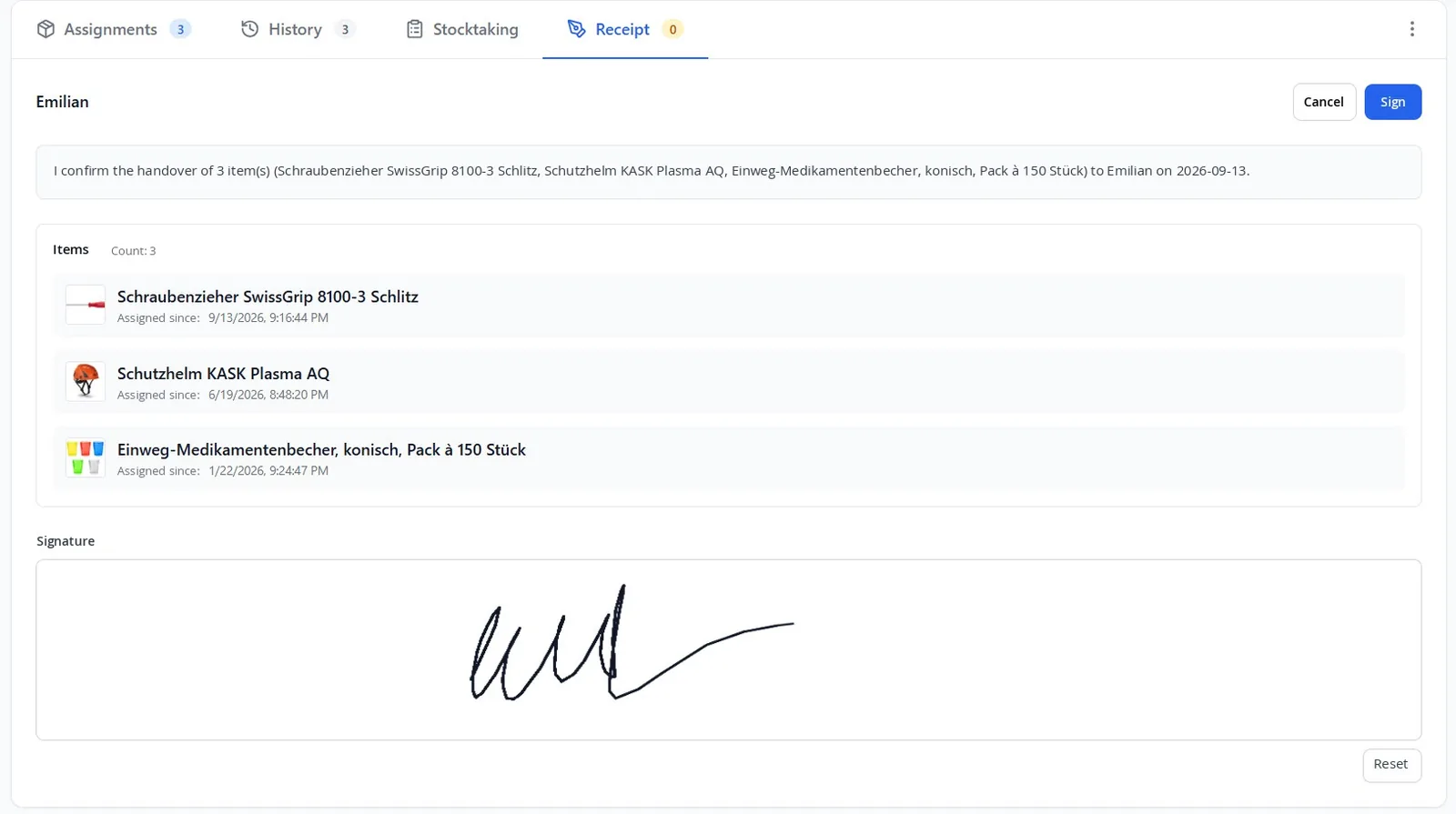
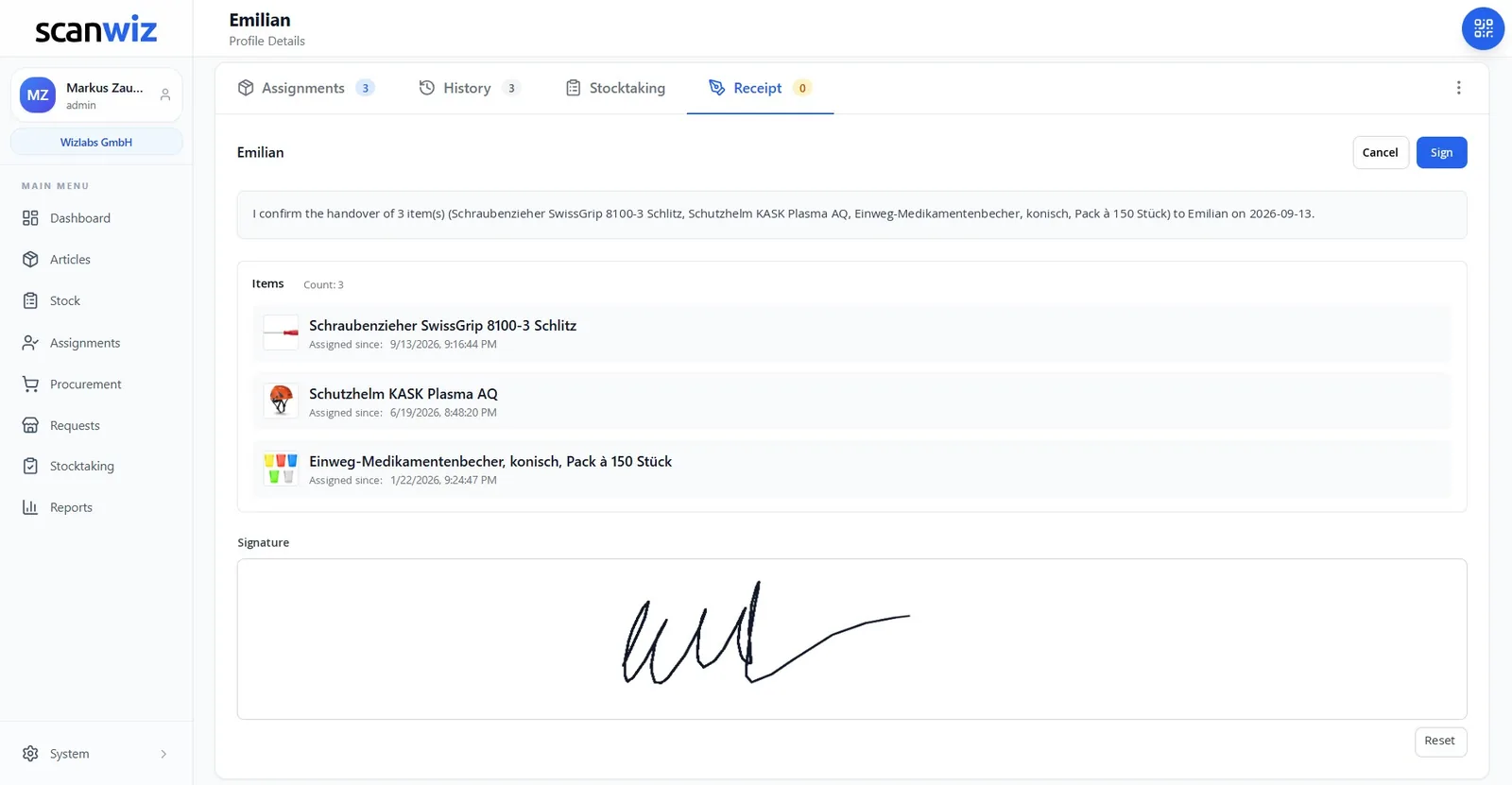
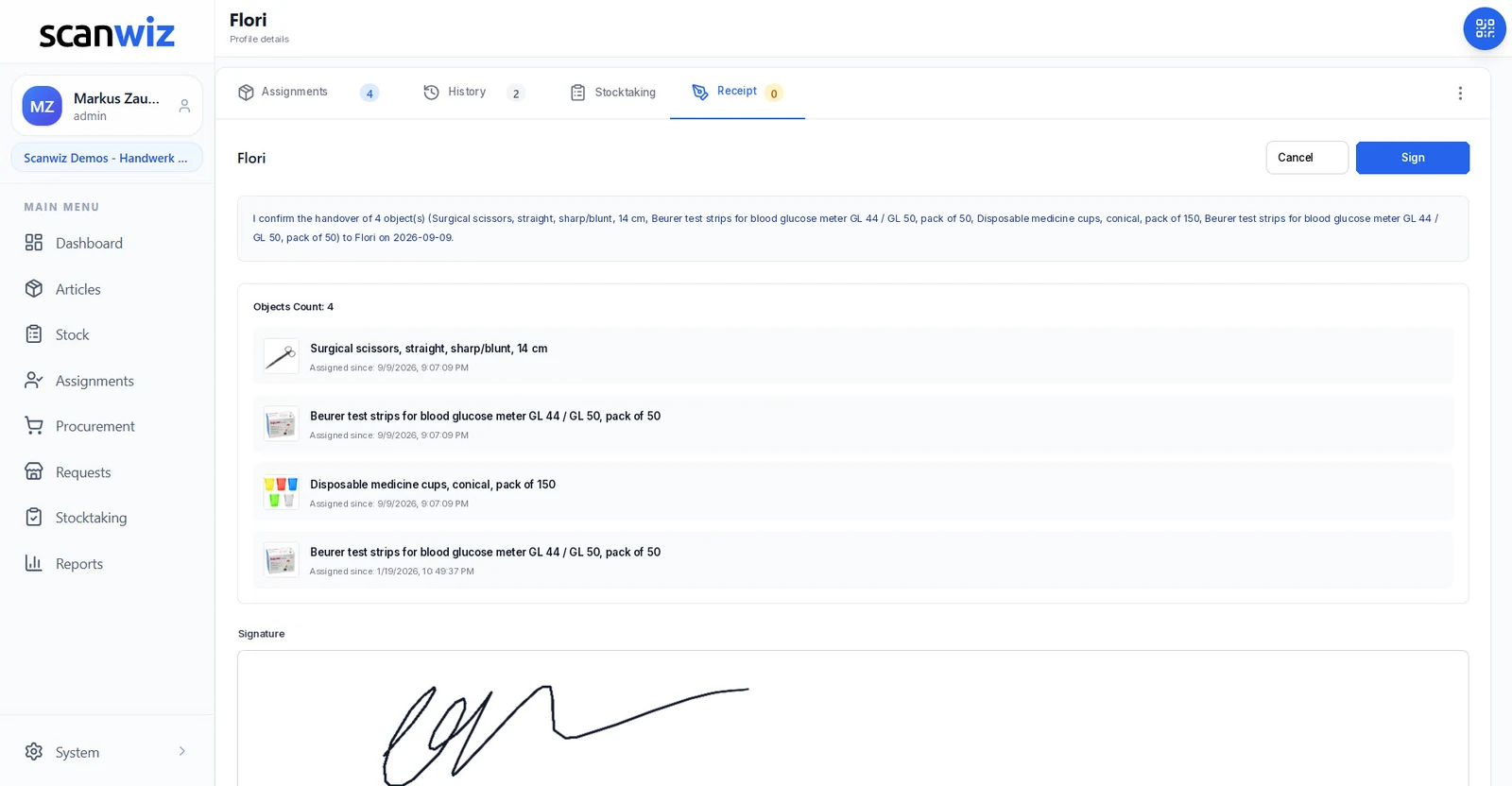
“I confirm the handover of 3 item(s) … to Emilian on 2026-09-13.” Below it, every item with picture and the time since which it has been assigned. At the bottom the signature field: finger, stylus or mouse. One click on “Sign” – and the receipt appears in the tab with the status “Confirmed”.
- Confirmation text generated from items, name and date
- Every item listed with picture and assignment time
- Signature field with “Reset” if the first attempt goes wrong
- Sign with finger, stylus or mouse – whatever the device offers
Signature type
Direct signature
- The person is standing next to you – tablet, phone or checkout screen
- Handwritten signature on the display
- The receipt is confirmed immediately
- Typical: morning tool handout, PPE issue, onboarding
Signature type
Email signature
- The person is not on site – branch, home office, construction site
- The person receives the receipt by email and confirms the handover from there
- Status and signature type are shown on the receipt in the tab
- Typical: devices sent by post, handover to external staff, proof after the fact
The proof
Equipment handover form: filed digitally instead of in a binder.
The awkward questions come months later – when someone leaves, when something is damaged, at stocktaking. What counts then is not whether somebody finds the sheet, but whether the receipt is on the profile.
The “Receipt” tab
Every confirmed handover in one line
Created on, number of items, the items in plain text, status and signature type – that is how every receipt appears on the profile. Filter by status and signature type, sort by date. A receipt created by mistake is deleted with one click.
- Filter by status and signature type
- Sort by date, newest first
- Item list in plain text – no click needed to see what was signed
- Delete a receipt if it was created by mistake
Who has what – and since when? The receipt confirms the handover. The assignment behind it – return, transfer and history – is covered on the equipment management page.
to equipment managementWhat changes
Six moments when the signature makes the difference.
A receipt takes ten seconds. Its absence costs discussions – usually right when nobody remembers what was agreed back then.
The departure
Someone leaves the company. Instead of “I never got that”, the signed receipt sits on the profile – with date and item list.
The damage
A device comes back damaged, or not at all. The receipt shows who took it over and when – no digging through binders.
The PPE issue
Where it has to be documented that protective equipment was issued, the receipt is the answer – with a signature instead of a memory.
The checkout counter
Ten people leave at the same time in the morning. The receipt needs no second screen: it is signed right where the assignment was made.
The remote site
The person is not on site? Email signature instead of posting back a signed sheet.
Data in Germany
Receipts and signatures are stored in certified data centres in Germany, GDPR-compliant.
The handover itself takes two scans. Scan the profile, scan the item – how assignment by QR code works is explained on the barcode scanner page.
to the barcode scannerFrequently asked questions
Answered briefly.
What is an equipment handover form?
An equipment handover form documents which person took over which tool, device or piece of protective equipment, and when – and is signed by that person. In Scanwiz this proof is created digitally as a receipt on the profile: from the assignments that are booked anyway, plus a signature on screen or by email.
How do I create a receipt with a signature in Scanwiz?
Open the profile, go to the “Receipt” tab, click “Create signature”. Scanwiz lists all open assignments of the person, pre-selected. You choose the signature type – direct signature or email signature – and the name comes from the profile. With the direct signature the finished confirmation text appears with the item list, the person signs in the field below, click “Sign”. The receipt then appears in the tab with the status “Confirmed”.
What is the difference between direct and email signature?
With the direct signature the person is standing next to you and signs by hand on the display – on a tablet, phone or checkout screen; the receipt is confirmed immediately. The email signature is for people who are not on site: they receive the receipt by email and confirm the handover from there. Both types are shown as signature type on the receipt and can be filtered in the tab.
Can I have only part of the assignments confirmed?
Yes. In the selection all open assignments are ticked, but you can remove every item individually. That way a person confirms the drill today and the helmet tomorrow – each with its own receipt. Profiles with many assignments have a search field.
What do people sign with?
With whatever the device offers: finger or stylus on tablets and smartphones, mouse or trackpad on the desktop. If the first attempt goes wrong, “Reset” clears the field without losing the selection.
Does the receipt change anything about the assignments?
No. The receipt documents the handover, it does not rebook anything. The assignments stay open until they are closed via “Return” or “Consume” – exactly as without a receipt. That is why the “Receipt” tab sits right next to the assignments on the same profile.
Is the digital signature legally valid?
The receipt records which items were handed over to whom and when, and stores the signature captured by hand on the display alongside – as a simple electronic signature. For the internal documentation of tool, device and PPE handouts this is the usual approach in practice. Whether a specific purpose in your organisation requires a different form of signature is best clarified with your legal department; this is not legal advice.
Can I delete a receipt?
Yes, every receipt in the list has a “Delete” button – for example if the wrong item was selected by mistake. Since a new receipt is created in a few seconds, deleting and re-signing is the cleanest way to correct an error.
Is the signature feature included in my plan?
Which features are included in which plan is shown in the pricing overview; if in doubt, we will tell you in two minutes on the phone. You can try everything beforehand for 14 days, free and with no obligation, no credit card required.
Over 250 customers already trust Scanwiz
The next handover is tomorrow morning. This time with a signature.
Start free and with no obligation – no credit card, no risk. Or let us walk you through Scanwiz in a personal demo.
4.9 out of 5 stars from over 120 verified customer reviews