

Many companies start their inventory management with Excel. This is understandable: The software is available, familiar, and appears flexible at first glance. However, as soon as there are more items, more orders, and more employees involved, Excel as an inventory management tool quickly reaches its limits – and this is exactly where Scanwiz comes in.
What does “inventory management with Excel” actually mean?
Anyone who manages their inventory management with Excel usually maintains one or more spreadsheets with the following information:
- Item numbers and descriptions
- Current stock levels and minimum stock levels
- Storage locations, racks, bins
- Purchases, sales, and reservations
In the beginning, this works surprisingly well. A simple list, maybe a few filters and totals, and it looks like everything is under control. The problems start as soon as several people work with the inventory at the same time or stock movements become more frequent.
Typical problems with inventory management using Excel
The larger the product range and the more dynamic the inventory environment, the more clearly the weaknesses of Excel as an inventory management tool become apparent:
- No real-time stock: Stock levels are maintained manually. If a goods issue is forgotten or entered late, the numbers no longer match reality.
- Error-prone manual entries: Typos, accidentally deleted rows, or formulas that someone “breaks” quickly lead to incorrect stock levels.
- No true multi-user capability: If several employees work in the same file at the same time, there is a risk of version conflicts, overwrites, or locked files.
- No process guidance: Excel does not know whether goods receipt, order picking, or stocktaking is currently in progress. Processes have to be coordinated via emails, paper notes, or shouted instructions.
- Difficult traceability: Who changed which stock and when? Why is an item suddenly negative? Changes are often hardly traceable.
These issues cost time, nerves, and ultimately money. Especially when customers expect fast delivery times, inventory management based purely on Excel can become a risk.
Scanwiz: Inventory management directly at the shelf instead of at the desk
Scanwiz was developed precisely for these situations: Instead of maintaining stock levels in Excel at the desk, employees record transactions directly at the storage location – using a smartphone or scanner. This reduces media breaks and keeps data closer to reality.
The core principles are:
- Scanning instead of typing: Items and storage locations are captured via barcodes or QR codes. This reduces typing errors and speeds up postings.
- Real-time stock levels: Every goods receipt, relocation, and goods issue is posted immediately. The current inventory is visible at any time.
- Clear processes: Scanwiz maps typical inventory processes such as goods receipt, put-away, order picking, and stocktaking in a structured way. Employees are guided through each step of the process.
- Transparency for everyone: Whether in the office or on the floor – everyone sees the same stock levels and movements without having to email Excel files back and forth.
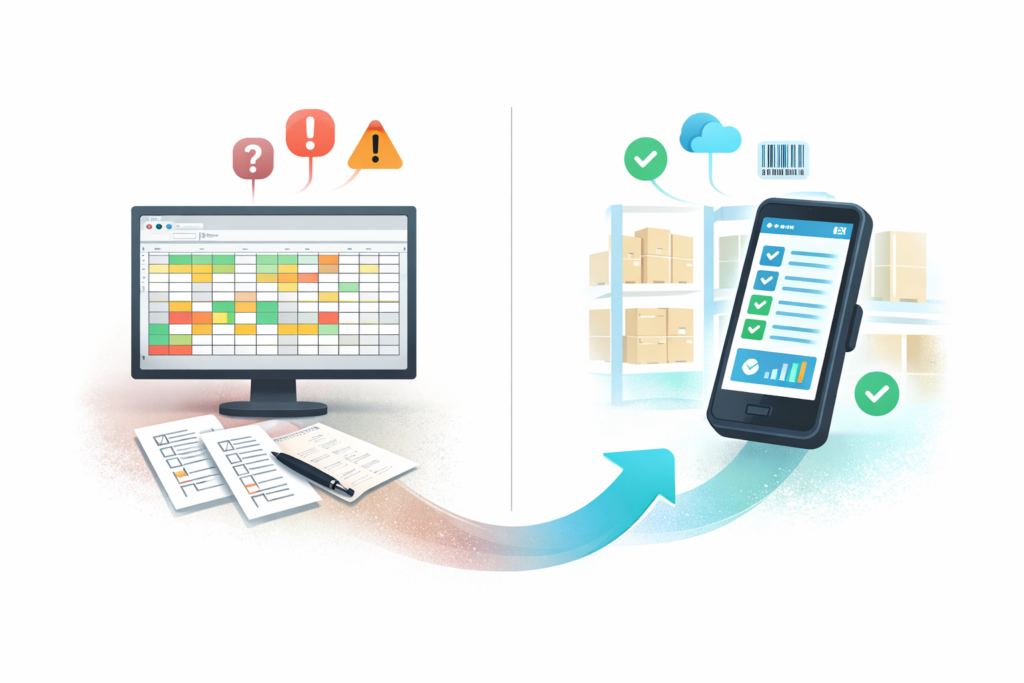
Small and medium-sized businesses that are still struggling with Excel can quickly switch to professional inventory management with Scanwiz without having to implement a complex ERP system.
Scanwiz vs Excel: Where are the practical differences?
The question is not whether Excel is fundamentally bad – but whether it is still the right tool for a growing inventory structure. In practice, clear differences emerge:
| Aspect | Inventory management with Excel | Inventory management with Scanwiz |
|---|---|---|
| Data entry | Manual input on a PC, highly error-prone | Scanning items and storage locations, fewer typing errors |
| Stock accuracy | Often delayed, dependent on manual updates | Real time, postings directly where inventory moves |
| Multi-user capability | Limited collaboration, possible version conflicts | Multiple users at the same time, shared data basis |
| Process mapping | No guided processes, lots of coordination via email | Predefined workflows for goods receipt, order picking, and stocktaking |
| Stocktaking | Paper sheets & Excel list, high coordination effort | Mobile stocktaking directly at the shelf, automatic evaluation |
| Transparency | Many different files, hard to keep consistent | Central system, clear stock levels and movements |
| Scalability | Quickly becomes confusing as the product range grows | Designed for a growing number of items and multiple storage locations |
Anyone who still starts with Excel today will sooner or later face the same pain points: unclear stock levels, frustration in operations, and customers waiting for their goods.
When is it worth switching from Excel to Scanwiz?
There are a few clear signals that the time has come for a specialized inventory management solution:
- Several people work with the inventory at the same time.
- There are frequent discrepancies between Excel stock and physical stock.
- Stocktakes take a long time and need to be “fixed” afterwards.
- Customer orders cannot be confirmed reliably because no one is really sure whether the goods are actually available.
- The number of items or storage locations has grown significantly in recent years.
In these situations, Scanwiz delivers measurable benefits: shorter search times, fewer picking errors, and clearer responsibilities. The switch can usually be organized step by step – for example, by digitizing individual areas first and using Excel in parallel only for reporting.
How Scanwiz makes getting started easier
A common argument in favor of Excel is: “We do not have time for a new system.” This is exactly where a lean solution shines. Scanwiz focuses on what matters most:
- Quick setup with clear fields for items, storage locations, and stock levels.
- Mobile apps that employees can use without extensive training.
- A clear role for Excel: export and analysis, no longer daily inventory tracking.
This way, an Excel list gradually turns into a transparent, digital inventory management system. The advantage: The data basis remains consistent, and you can continue to work with familiar reports – only now based on reliable stock levels.
Conclusion: Everyone knows Excel – but Scanwiz is built for inventory control
Excel is a great tool for calculations, lists, and ad hoc analyses. For long-term, growing inventory management, however, it is only suitable to a limited extent. As soon as more stock movements happen and more people are involved, the risks outweigh the benefits.
Scanwiz, on the other hand, is consistently designed for inventory control: scanning instead of typing, processes instead of spreadsheets, real-time stock levels instead of gut feeling. Anyone searching for “inventory management with Excel” today is usually already facing the typical limits of spreadsheets – and this is exactly where the added value of Scanwiz begins.
Customer rating: 4.9 out of 5 stars based on 113 customer reviews.